Mobile Battery Drain Solution: You wake up, check your phone 100%. By lunchtime, it’s already at 30%. No calls. No heavy gaming. Just the usual scrolling and a few messages.
Thank you for reading this post, don't forget to subscribe!Mobile battery drain is one of the most frustrating things in modern life. And honestly, most of the blame isn’t on your battery. It’s on the things silently running behind the scenes that you probably don’t even know about.
Quick Reference: Battery Drain Solutions at a Glance
| Cause | Quick Fix |
| High Screen Brightness | Set to Auto or 50%, enable Dark Mode |
| Background Apps | Restrict in Settings → Apps → Battery |
| 5G Connectivity | Switch to 4G/LTE for daily use (less heat) |
| Location Services | Set to “Only While Using” or Turn Off GPS |
| Poor Network Signal | Switch to Wi-Fi or use Airplane Mode at night |
| Extreme Temperatures | Keep phone away from direct sunlight & heat |
| Battery Health | Replace if health is below 80% |
| Charging Habits | Keep charge level between 20–80% |
| Suspicious Apps | Scan for Malware & remove unknown apps |
| Post-Update Drain | Wait 3–5 days for system optimization |
Why Does My Phone Battery Drain So Fast?
Before you start blaming your phone brand, let’s look at what’s actually happening.
Common battery drains include high screen brightness, poor cell reception, leaving Bluetooth on, faulty chargers, and extreme temperatures. Always-on background apps, outdated software, and even malware can also cause your battery to drain faster than normal.
That’s a lot of culprits. Let’s go through the biggest ones.
1. Your Screen Is the Biggest Power Hog
This one isn’t a surprise, but people still underestimate how much the screen takes.
High refresh rate screens make scrolling and gaming feel smooth, but they significantly increase power consumption. High screen brightness is one of the single biggest factors in battery use.
When screen brightness is set to maximum, your phone pushes more power through the display’s backlight. On OLED screens, white and bright colors consume more energy.
What to do: Drop your brightness to around 50% and switch to dark mode. Android’s dynamic dark theme can save up to 30% battery on OLED displays. Also, set your screen timeout to 30 seconds. It’s a small change with real impact.
2. Background Apps Are Draining You Without Permission
Here’s the sneaky one. You close an app but it doesn’t really close.
Background app refresh cycles drain batteries quickly. Social apps, messaging tools, and email clients check for updates automatically. Push notifications, background sync, and auto-upload features all contribute to background drain. Recent studies show background processes use around 35% of daily battery power.
Apps like Maps, email, shopping apps, and TikTok may stay active even after you swipe them closed. These apps run in the background, update location, sync data, and check notifications.
What to do: Go to Settings → Apps → Battery and restrict background activity for apps you don’t urgently need updates from. On Android, use “Restricted” mode for heavy offenders.
3. 5G Is Fast But Hungry
5G is great for speed. Not so great for battery life.
The 2025 Connectivity Report shows 5G can use 15–20% more battery than 4G under similar usage patterns. And if you’re in an area with weak 5G signal, your phone constantly switches between bands trying to hold a connection — which makes things even worse.
What to do: Use 5G only for downloads. Set your preferred network mode to 4G/LTE for daily use via Settings → Network → Mode Selector. You won’t notice the difference in daily browsing, but your battery will.
4. Location Services Are Always Watching
GPS is one of the most power-intensive features on any smartphone. And a surprising number of apps request constant location access even when they have zero reason for it.
Apps that constantly track your location are a major drain. Location tracking creates “background battery bleed” a silent drain that happens gradually throughout the day.
What to do: Go to Settings → Privacy → Location Services and change app permissions to “Only While Using.” Turn off location entirely for apps like weather widgets that don’t actually need live GPS.
5. Poor Signal Forces Your Phone to Work Harder
This one catches people off guard.
When your phone has poor reception, it ramps up power use to stay connected. If your device is constantly searching for a signal in elevators, rural areas, or subways the battery drain increases significantly.
Think about it: your phone is essentially shouting for a signal it can barely hear. That takes energy.
What to do: Use airplane mode when you don’t need connectivity, or switch to Wi-Fi in weak signal zones. Wi-Fi is always more efficient than cellular data.
6. Extreme Temperatures Are a Silent Killer
Your battery doesn’t like extremes neither heat nor cold.
Lower temperatures affect battery life significantly. Lithium-ion batteries stop discharging electricity in extreme cold, and constant exposure to cold weather can permanently damage a battery. Heat, on the other hand, accelerates battery degradation over time. Heat is a battery’s worst enemy.
The optimal storage temperature for lithium-ion batteries is 15°C to 25°C. In hot summer conditions, never expose devices with lithium-ion batteries to direct sunlight for extended periods.
What to do: Don’t leave your phone on the dashboard. Don’t use it while charging in a hot room. And in winter, keep it close to your body for warmth.
7. Your Battery Is Just Getting Old
Sometimes the problem isn’t what you’re doing it’s time.
Generally, lithium-ion batteries used in consumer electronics have a cycle life of about 300 to 500 times. After reaching this number of cycles, battery capacity drops to about 80% of its initial capacity.
The average battery lifespan of a smartphone is around 2 to 3 years. After this period, the battery’s capacity may start to degrade significantly, resulting in reduced battery life and the need for more frequent charging.
Apple, for example, states that a battery’s lifespan is tied to its “chemical age” which includes the number of charge cycles and how the battery was cared for. Anything below 80% battery health should signal it may be time for a replacement.
What to do: Check battery health in your settings. On iPhone: Settings → Battery → Battery Health & Charging. On Android: Settings → Battery → Battery Care. If you’re below 80%, a battery replacement is often cheaper than a new phone.
8. Charging Habits That Are Secretly Hurting You
Most people charge their phones the wrong way. Don’t feel bad nobody tells you this.
Avoiding overcharging and over-discharging is crucial. It’s best to maintain the battery level between 20% and 80%. Charge the battery when it drops below 20% and stop charging at around 80–90% to avoid prolonged full-charge states.
Charging to 100% every time and letting it drop to 0% regularly puts unnecessary stress on the cells.
What to do: Charge in shorter sessions throughout the day. Most modern phones also have a “Charging Optimization” setting that learns your routine and slows charging to reduce wear.
9. Malware Can Drain Your Battery Too
Yes, really. This is not a rare edge case.
A virus can certainly drain a phone’s battery. Malicious software can cause your phone to work overtime, running hidden processes that eat up battery life. Viruses may also interfere with your phone’s sleep mode or push through advertisements that overwork your device.
What to do: If your battery suddenly started draining fast after installing an app, that’s a red flag. Remove suspicious apps and run a reputable security scan. Stick to official app stores.
10. Software Updates Friend and Sometimes Foe
An update can fix battery issues. It can also create them.
After a software update, the system may take 2 to 3 days, or even up to a week, to stabilize as it completes background indexing and optimization tasks.
So if your battery suddenly gets worse after an update, give it a few days before panicking.
What to do: Keep your software updated. Software updates often come with battery life improvements. But if drain persists after a major update, check your manufacturer’s support forums you’re likely not the only one affected.
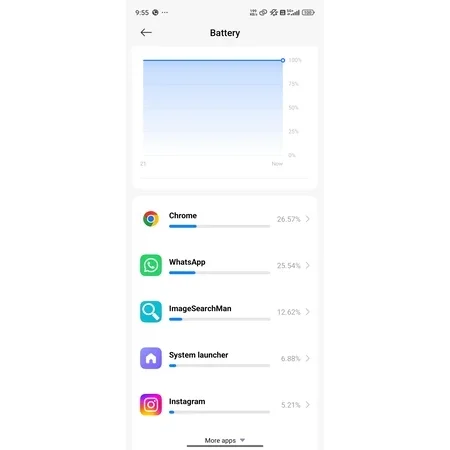
How to Check What’s Actually Draining Your Battery
On Android:
Go to Settings → Battery → Battery Usage. This shows exactly which apps consumed how much power in the last 24 hours.
On iPhone:
Go to Settings → Battery. Scroll down to see per-app battery usage for the last 24 hours or the last 10 days.
If one app is consuming 30%+ of your battery while you’re barely using it, that’s your culprit. Restrict it, update it, or delete it.
The Smart Charging Rule Nobody Taught You
Here’s a rule worth memorizing: 20–80.
Keeping your phone’s charge between 20% and 80% instead of allowing it to run to 0% or charge to 100% helps lithium-ion batteries last significantly longer. Operating within this range reduces stress on the battery cells.
It sounds obsessive at first. But it’s the single most impactful long-term habit you can build.
When It’s Time to Replace Your Battery
Not everything can be fixed with a setting tweak. Sometimes the battery just needs to go.
Signs you need a replacement:
- Your phone dies suddenly at 20% or more
- Battery health is below 80%
- The back of your phone is bulging (stop using it immediately if so)
- You’re charging two or three times a day just to get through
The “Right to Repair” movement has led to more legislation requiring manufacturers to make parts, tools, and repair manuals accessible meaning you now have more options for battery replacement beyond expensive official channels.
A battery replacement at an authorized service center typically costs a fraction of a new phone. It’s worth exploring before upgrading.
Final Words about Mobile Battery Drain Solution
Mobile battery drain rarely has a single cause. Most of the time, it’s a combination a bright screen, a few background apps, a weak signal, and an aging battery all working against you at once.
The good news is that each of these has a fix. Start with the quick wins: lower brightness, restrict background apps, check your battery health. From there, build smarter charging habits and you’ll notice the difference within a day or two.
Your battery isn’t broken. It just needs a little attention
Frequently Asked Questions
Q1: Why is my phone battery draining so fast all of a sudden?
Ans. Sudden battery drain is usually caused by a recent app update, a new OS update running background indexing, or a rogue app consuming power. Check Settings → Battery Usage to identify the culprit. Give it 2–3 days after a system update before troubleshooting further.
Q2: Does dark mode actually save battery?
Ans. Yes but only on OLED and AMOLED displays. On these screens, black pixels are turned off completely, which reduces power draw. Android’s dynamic dark theme can save up to 30% battery in some cases. On older LCD screens, the effect is minimal.
Q3: Is it bad to charge your phone overnight?
Ans. Modern smartphones have built-in mechanisms to stop charging at 100%. However, keeping the phone at full charge for extended periods may slightly reduce lifespan due to heat and trickle charging. The safest habit is to charge between 20–80% and use Charging Optimization settings if available.
Q4: How do I know if my battery needs to be replaced?
Ans. Check battery health in your settings. On iPhone, go to Settings → Battery → Battery Health & Charging. On Android, go to Settings → Battery → Battery Care. If capacity is below 80%, or your phone shuts down unexpectedly at 20–30%, it’s likely time for a replacement.
Q5: Does 5G drain battery faster than 4G?
Ans. Yes. 5G can use 15–20% more battery than 4G under similar usage conditions, especially in areas with weak 5G signal where the phone constantly switches between frequency bands. Switching to 4G/LTE for daily browsing is a simple way to gain extra battery life.
Q6: Can a virus or malware drain my phone battery?
Ans. Absolutely. Malicious software runs hidden background processes, interferes with sleep mode, and pushes ads that keep your screen and processor active. If your battery drain is sudden and unexplained, check for recently installed apps and run a security scan.
Q7: What is the 20–80 battery rule?
Ans. It’s a charging guideline that recommends keeping your battery between 20% and 80% at all times. Lithium-ion batteries are healthiest when they avoid the stress of deep discharges (below 20%) and overcharging (above 80–90%). Following this rule can significantly extend your battery’s long-term lifespan.
Q8: Does turning off Bluetooth and Wi-Fi save battery?
Ans. Yes, when you’re not using them. Bluetooth and Wi-Fi scan for connections in the background even when idle. Turning them off when not needed especially before sleeping can reduce overnight drain.
Must Read: How to Disable V-Appstore on Vivo and iQOO Mobile 2026
5G Battery Drain Problem Real Causes and Practical Solutions

Parveen
Author Details : I hunt for the best mobile hacks and latest tech updates so you can stay ahead. Follow me for daily tips and tricks that actually work.
Website