How to Disable Ads in HyperOS: You just bought a shiny new Xiaomi phone. The camera is great. The price was even better. And then an ad pops up inside your Music app. Then inside Themes. Then inside the Security app of all places.
Thank you for reading this post, don't forget to subscribe!Welcome to HyperOS.
To be fair, this is not a new problem. Xiaomi has been doing this for years, and there is actually a business logic behind it. Xiaomi considers itself an internet company that happens to make hardware and it has promised to cap hardware profit margins at 5% forever. Ads are one of the ways it makes up the difference. So yes, cheaper phone, more ads. It is a trade-off.
What Is Causing All These Ads?
Before jumping to solutions, it helps to understand what you are dealing with.
Many of the ads you see on HyperOS come from a background service called MSA short for MIUI System Ads. This is a telemetry-linked app responsible for showing recommendations and advertisements across the entire system.
Think of MSA as the ad manager living quietly in your phone, doing its job around the clock. Turning it off is the single most important step in this whole process.
Beyond MSA, individual apps like Mi Browser, Music, Themes, and Security each carry their own ad settings. You need to deal with both. One kill switch does not rule them all, unfortunately.
Quick Recap Everything in One Place
Here is a fast summary of everything you need to do:
System-Level
- Disable MSA via Settings → Passwords and Security → Authorisation and revocation
- Turn off Personalised ad recommendations via Settings → Privacy → Ad services
App-Level:
- Mi Browser → Profile → Settings → Advanced → Show ads (off)
- Music → Profile → Settings → Advanced settings → Show ads + Personalised recommendations (off)
- Themes → Account → Settings → Show ads + Personalised recommendations (off)
- Downloads → Three-dot menu → Settings → Show recommended content (off)
- Security → Settings → Show recommendations (off); also under Cleaner section
- App Vault → Manage services → App suggestions + Ads (off)
- Mi Video → Profile → Settings → Personalised recommendations (off)
- Lock screen → Glance for Mi → Privacy Policy → Recommendations for you (off)
- App Folders → Tap folder name → Promoted apps (off)
- File Manager → Settings → Withdrawal of consent (off)
Step 1: Disable MSA (The Most Important Step)
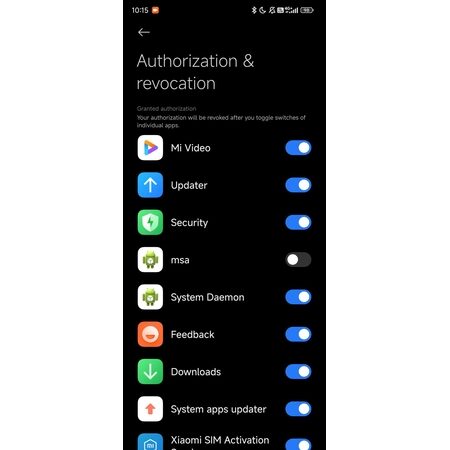
To disable MIUI System Ads (MSA), open Settings and go to Fingerprints, face data and screen lock (or Passwords and Security on some devices). Tap Authorisation and revocation, find MSA, toggle it off, and hit Revoke to confirm.
A quick note this step requires an active internet connection, either Wi-Fi or mobile data. If the revocation does not work the first time, keep trying. You may get a message saying it cannot revoke the authorisation, but it usually goes through after a few attempts. Once you do this, you will notice a significant drop in system-wide ads. But you are not done yet.
Step 2: Turn Off Personalised Ad Recommendations
Even after disabling MSA, Xiaomi can still track your behaviour and show you targeted ads. Here is how to stop that too.
Open Settings, go to Privacy, select Ad services or Advertising services, and then disable Personalised ad recommendations. This does not remove all ads, but it stops Xiaomi from using your personal data to target them. From a privacy standpoint, this step matters a lot.
Step 3: Disable Ads in Individual Apps
This is the tedious part. But skip it and ads will still show up inside your apps. Here is what to do, app by app.
Mi Browser
Open Mi Browser, tap the Profile icon, go to Settings, then Advanced, and disable Show ads.
Music App
In the Music app, go to Profile, then Settings. First disable Allow permanent notifications. Then go into Advanced settings and turn off both Show ads and Personalised recommendations.
Themes App
Open Themes, go to Account, tap Settings, and disable Show ads and Personalised recommendations.
Downloads App
Open the Downloads app, tap the three-dot menu, go to Settings, and turn off Show recommended content.
Security App
In the Security app, open Settings and disable Show recommendations. Also check under the Cleaner section and turn that off as well.
The Security app also has a scan-before-installation feature that displays ads. You can disable it by going to Security app settings, selecting Security scan, and turning off Scan before installation.
App Vault
Open App Vault, go to Manage services, and turn off App suggestions and Ads.
Mi Video Player
Open Mi Video Player, go to Profile, then Settings, and disable Personalised recommendations.
Note: On some builds of HyperOS, this setting only stays off for 90 days before it resets. So check back occasionally.
Step 4: Handle the Lock Screen and App Folders
Ads do not just live inside apps. They creep onto your lock screen and even inside folder names.
For lock screen ads, go to Settings, then Lock screen, find Glance for Mi, open Privacy Policy, and turn off Recommendations for you. For app folders, tap on the folder name and turn off Promoted apps.
These two are easy to miss, but they make a real difference in day-to-day use.
Step 5: File Manager What You Can (and Cannot) Do
In HyperOS, the option to turn off recommendations inside File Manager — which existed in MIUI — has been removed. You cannot block ads the same way anymore.
However, there is still something you can do. In HyperOS, you can revoke consent for data collection inside File Manager. Open the app, tap the three-dot menu, go to Settings, toggle off Withdrawal of consent, and tap OK to confirm. It is not a perfect fix, but it does limit personalised ad targeting.
Will Ads Come Back After an Update?
Yes, unfortunately. This is one of the most frustrating parts.
After system updates, some of these settings may reset. Revisiting them occasionally helps maintain your preferred, ad-free configuration.
So put a reminder on your calendar every time you update HyperOS. Five minutes of checking these settings is all it takes.
Does This Work on All Xiaomi, Redmi, and POCO Phones?
Mostly, yes but not all settings appear on every device.
Steps may differ depending on your hardware and software version. For example, some settings are only present on budget Redmi and POCO devices, while premium Xiaomi flagships may already have fewer ads built in by default.
On more expensive Xiaomi phones, some ad-heavy features simply do not appear on the home screen — though system app ads can still be present.
The steps in this guide cover the most common scenarios across HyperOS 1.x and 2.x builds.
Final Words about How to Disable Ads in HyperOS?
Xiaomi builds good hardware at honest prices. That is a fact. But the ad experience inside HyperOS is, at best, annoying and at worst, a privacy concern. The good news is that Xiaomi does give you the tools to turn most of it off. They just hide them really well.
Going through these settings drastically reduces the amount of unwanted content you see and improves both privacy and battery life. That last part is a bonus MSA running in the background uses real resources, so disabling it actually helps your phone run a little smoother.
Take 10 minutes, go through each step, and enjoy a cleaner HyperOS experience. You bought the phone you should be the one in control of it.
Frequently Asked Questions
Q1. Does HyperOS still have ads in 2025?
Ans. Yes. HyperOS still shows ads inside system apps like Mi Browser, Music, Themes, Security, and more. Xiaomi has not removed them by default. However, you can manually turn them off using the steps in this guide.
Q2. What is MSA in HyperOS?
Ans. MSA stands for MIUI System Ads. It is a background service built into HyperOS that pushes advertisements and recommendations across the entire system. Disabling MSA is the first and most important step to reducing ads on your Xiaomi phone.
Q3. Will disabling MSA harm my phone?
Ans. No. Turning off MSA does not damage your phone or affect its core functions. It simply stops the background ad service from running. Your phone will work normally just with fewer ads.
Q4. Do I need root access to disable ads in HyperOS?
Ans. No root access is needed. All the steps in this guide work through the built-in settings of HyperOS. Everything is done inside the phone’s Settings and individual app menus.
Q5. Why do ads come back after a HyperOS update?
Ans. Xiaomi’s system updates can reset some ad-related settings back to their defaults. This is a known issue. After every major update, it is recommended to go through the key settings again — especially MSA and app-level ad toggles.
Q6. Can I disable ads on Redmi and POCO phones running HyperOS?
Ans. Yes. The same steps apply to Xiaomi, Redmi, and POCO phones running HyperOS. Some menu names or options may look slightly different depending on your device model and HyperOS version, but the process is mostly the same.
Q7. Does turning off personalised ads remove all ads?
Ans. No. Disabling personalised ad recommendations stops Xiaomi from using your data to target ads. But it does not remove all ads completely. You also need to disable MSA and turn off ads inside individual apps for a full cleanup.
Q8. Can I remove ads from the File Manager in HyperOS?
Ans. Not fully. The option to turn off recommendations inside File Manager which existed in MIUI — has been removed in HyperOS. However, you can go to File Manager settings and turn off Withdrawal of consent to stop Xiaomi from collecting your data for personalised ads.
Q9. How long does it take to disable all ads in HyperOS?
Ans. It takes about 10 to 15 minutes to go through all the steps from disabling MSA to adjusting settings in each individual app. It is a one-time process, though you may need to repeat it after major system updates.
Q10. Will disabling ads improve my phone’s battery life?
Ans. Yes, slightly. MSA runs in the background and consumes system resources. Disabling it along with other ad services can lead to a small improvement in battery life and overall phone performance.
Must Read: Realme/Oppo Se Hot Apps Kaise Hatayein?
More tips-and-tricks