You just got your shiny new Vivo or iQOO phone. You’re excited. You start exploring and then, out of nowhere, V-Appstore pops up, sends you a notification, tries to install something you never asked for, and basically acts like that one uninvited guest at a party.
Thank you for reading this post, don't forget to subscribe!You’re not alone. Thousands of Vivo and iQOO users search every day for how to disable V-Appstore and for good reason. This guide covers every working method, from the simplest one-tap fix to the more technical ADB approach. No fluff, no made-up steps just what actually works.
What Is V-Appstore?
V-Appstore is a pre-installed app on Vivo and iQOO smartphones running FuntouchOS. It comes built into the system as a third-party app marketplace think of it as Vivo’s own version of the Play Store, but one you never asked for.
Its package name is com.vivo.appstore and it runs in the background pushing ads, promoting “Hot Apps and Games,” and sometimes even intercepting app download requests before Google Play Store gets a chance.
Is it harmful? Not exactly. But is it annoying? Absolutely.
Which Method Should You Pick?
| Your Situation | Best Method |
|---|---|
| Disable button is available | Method 1 (Settings App) |
| Settings button is greyed out | Method 2 (In-App Uninstall) |
| Can’t uninstall, just want peace | Method 3 + 4 (Notifications + Permissions) |
| Want to block without removing | Method 5 (Block Internet) |
| Want it gone permanently | Method 6 (ADB) |
Why You Should Disable V-Appstore
Here’s what V-Appstore does that frustrates users:
- It sends constant promotional notifications even when you’re not using it.
- It installs apps in the background without clear user consent in some cases.
- It competes with Google Play Store and tries to redirect downloads.
- It uses your mobile data and battery in the background.
- It contributes to Vivo’s ad revenue at your expense.
Now let’s fix it.
Method 1: Disable V-Appstore via the Settings App (Easiest Method)
This is the first thing you should try. It takes less than a minute.
1. Open the Settings app on your Vivo or iQOO device.
2. Tap on Apps (also called “App Management” on some versions).
3. Scroll through the list and find V-Appstore.
4. Tap on it to open the app info page.
5. Hit the Uninstall or Disable button.
That’s it. If the button is available and not greyed out, the app will be removed or disabled immediately.
Note: On some devices, especially newer FuntouchOS versions, the Disable/Uninstall button may be greyed out. If that’s the case, move to the next method.
Method 2: Uninstall V-Appstore Using Its Own In-App Settings
Yes, V-Appstore actually lets you uninstall it from within the app itself. A little ironic, but it works.
1. Open the V-Appstore app on your phone.
2. Tap the Gear icon at the bottom to access app settings.
3. Look for the Uninstall option and tap it.
4. Find V-Appstore in the list and tap the Uninstall button next to it.
5. The app will force close automatically and uninstall itself.
This method works on many Vivo devices where the Settings route doesn’t show a clear Disable button.
Method 3: Turn Off V-Appstore Notifications
Can’t uninstall it? At least silence it. Disabling notifications is the quickest way to stop V-Appstore from bugging you every day.
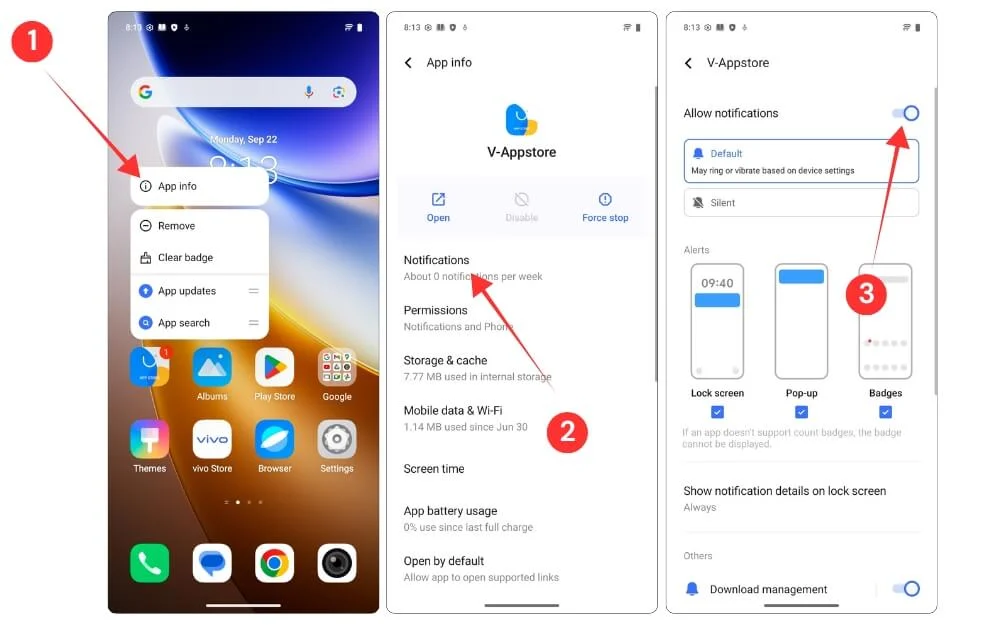
1. Go to Settings > Apps > V-Appstore.
2. Tap on Notifications.
3. Toggle off the main V-Appstore notifications switch.
4. Then open the V-Appstore app, tap the Gear icon, and go to Notifications inside the app.
5. Turn off every notification toggle on that page.
After this, V-Appstore will still be installed but it’ll stay quiet.
Method 4: Revoke All Permissions for V-Appstore
This is a smart move. Without the right permissions, V-Appstore can’t do much damage. Here’s how to strip it of everything.
1. Go to Settings > Apps > V-Appstore > Permissions.
2. Tap on each permission and set it to “Don’t Allow”.
3. Scroll down and tap “Open by Default“.
4. Disable the **”Open Supported Links”** toggle.
5. Go to the Advanced section and turn off:
- Display over Other Apps
- Modify System Settings
- Install Unknown Apps
6. Finally, tap Force Stop to shut the app down completely.
This won’t remove the app, but it effectively cripples it. Combined with turning off notifications, this is a solid workaround if uninstallation isn’t possible.
Method 5: Block V-Appstore’s Internet Access
No internet = no ads, no notifications, no background installs. This is a clean and effective approach.
1. Go to Settings > Apps > V-Appstore.
2. Scroll down to find Mobile Data and Wi-Fi settings.
3. Toggle off both options.
V-Appstore will still be installed but won’t be able to connect to the internet. No connection, no mischief.
Method 6: Remove V-Appstore Using ADB Commands (Advanced Method)
This is the most powerful method. ADB (Android Debug Bridge) is an official Android developer tool that lets you send commands from your computer directly to your phone. You don’t need root access for this.
The package name for V-Appstore is com.vivo.appstore.
What you need:
- A Windows, Mac, or Linux computer
- A USB cable
- Android SDK Platform-tools (download from [developer.android.com](https://developer.android.com/tools/releases/platform-tools))
Step-by-Step:
1. Enable Developer Options on your Vivo phone:
- Go to Settings > About Phone > Software Version.
- Tap on Software Version 7 times until you see You are now a developer.
2. Enable USB Debugging:
- Go to Settings > More Settings > Developer Options.
- Toggle on USB Debugging.
3. Connect your phone to your computer via USB and select “File Transfer” mode.
4. Open Command Prompt (Windows) or Terminal (Mac/Linux) inside the platform-tools folder.
5. Verify your phone is detected:
- adb devices
You should see your device listed. If it says “unauthorized,” check your phone screen and tap “Allow USB Debugging.”
6. Enter the ADB shell:
- adb shell
7. Run the uninstall command for V-Appstore:
pm uninstall -k –user 0 com.vivo.appstore
If successful, you’ll see a message that says Success.
Important: This removes the app for your user account only. A factory reset will bring it back. It does not modify the system partition, so your phone remains safe and warranty-friendly.
Warning from the developer community: On some newer Vivo firmware versions, attempting to disable V-Appstore via ADB may return a SecurityException error. In that case, the uninstall command (shown above) still tends to work even when the disable command doesn’t.
Final Words About How to Disable V-Appstore
V-Appstore is a classic example of bloatware software pre-installed on your device not because it helps you, but because it helps the manufacturer earn ad revenue. You paid for your phone. You have every right to decide what runs on it.
The good news? You have real options here. Start with the simplest method that applies to your device. If one doesn’t work, the next one will. And if you want it gone for good, ADB is your friend.
Your phone, your rules.
Frequently Asked Questions
Q1: Why is the Disable button greyed out for V-Appstore?
Ans. Vivo prevents users from disabling some of its system apps through the standard Settings interface. This is a deliberate restriction in FuntouchOS. Your best alternatives are revoking permissions, blocking internet access, or using ADB.
Q2: Will disabling V-Appstore break my phone?
Ans. No. V-Appstore is not a core system app. Removing or disabling it will not affect calls, messaging, camera, or any essential function. You’ll just lose access to Vivo’s third-party app marketplace which most users actively want.
Q3: Will V-Appstore come back after a software update?
Ans. Possibly. OTA (Over-the-Air) system updates from Vivo can re-enable or reinstall pre-installed apps. If that happens, just repeat the method that worked for you.
Q4: Can I use ADB without a computer?
Ans. Not easily. ADB requires a desktop connection. If you want a computer-free option, stick with Methods 1 through 5.
Q5: Does this work on iQOO phones too?
Ans. Yes. iQOO phones run on FuntouchOS (or OriginOS in some regions), and the V-Appstore package name com.vivo.appstore is the same across Vivo and iQOO devices.

Parveen
Author Details : I hunt for the best mobile hacks and latest tech updates so you can stay ahead. Follow me for daily tips and tricks that actually work.
Website