BGMI / Free Fire Overheating Solution: Overheating is one of the biggest frustrations for BGMI and Free Fire players in India, especially during long ranked sessions in summer. The good news? Most of it is completely preventable. Let’s break it down properly.
Thank you for reading this post, don't forget to subscribe!You drop into Erangel. You loot the whole compound. You spot an enemy. You aim. And then lag. FPS drops. Screen freezes. Your phone is literally burning your fingers.
Why Does Your Phone Overheat During BGMI and Free Fire?
Before jumping to fixes, you need to understand what is actually happening inside your device.
The Real Science Behind It
runs on Unreal Engine 4 and supports up to 120 FPS on compatible devices. is lighter but still demands steady CPU and GPU work for its real-time rendering. When you play these games, your processor handles graphics, network packets, physics, and audio all at the same time. That is a heavy workload and heat is the natural byproduct.
Your phone’s CPU and GPU generate heat under load. According to thermal experts, thermal throttling kicks in around 42–45°C on most Android devices meaning your phone deliberately slows itself down to protect internal components. That is when you start noticing FPS drops, stuttering, and that frustrating lag right in the middle of a gunfight.
In short: your phone is not broken. It is panicking.
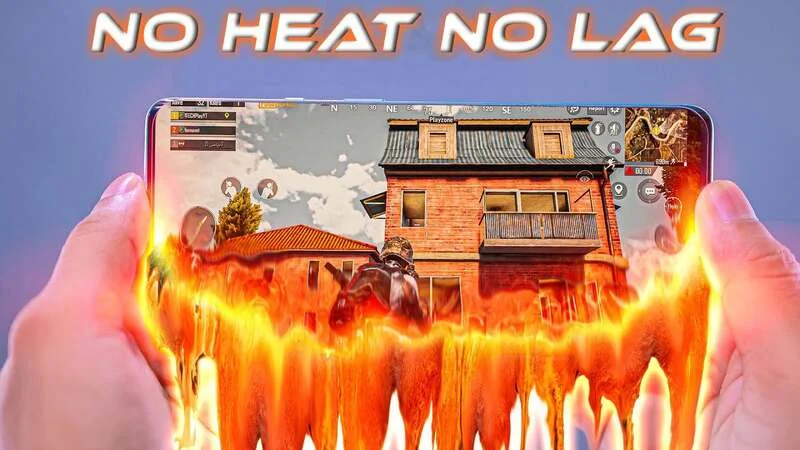
Common Causes of Overheating in Mobile Gaming
These are the real culprits:
- High graphics settings pushing the GPU to its limits
- harging while playing both the battery and processor generate heat simultaneously, creating a double heat effect
- Background apps consuming CPU and RAM silently
- Hot environment playing outdoors or in a non-ventilated room worsens things fast
- Thick phone cases that trap heat with zero airflow
- 120 FPS modeeven BGMI’s official patch notes for the 3.5 update warn that activating 120 FPS increases device temperature significantly
Quick Checklist: Before Every Gaming Session
Here is a one-minute checklist to run before you drop into any match:
- Phone fully charged
- Case removed or using a ventilated case
- Background apps closed
- Graphics set to Smooth/Balanced
- Screen brightness at 40–60%
- Refresh rate at 60Hz
- Connected to Wi-Fi
- Playing in a cool room
Do this consistently and your phone will run cooler, your FPS will stay stable, and your matches will actually depend on your skill not your device’s thermal panic attack.
10 Proven Solutions to Fix BGMI / Free Fire Overheating
Let’s get into the actual fixes. These are practical, tested, and based on real hardware behavior not random tips from the internet.
1. Lower Your In-Game Graphics Settings First
This is the most effective fix and should be your first move.
High graphics settings force your GPU to render more pixels, more shadows, and more textures every single frame. That burns a lot of power and generates serious heat.
What to do in BGMI:
- Graphics: Smooth or Balanced (avoid Ultra HD)
- Frame Rate: 40 FPS or 60 FPS (avoid Extreme unless your phone handles it well)
- Turn off Shadows, Anti-Aliasing, and Bloom effects
What to do in Free Fire:
- Resolution: Low or Medium
- Frame Rate: 60 FPS max
- Disable HDR if available
You might think lower graphics = bad experience. But here is the thing smooth 60 FPS on medium settings will always beat stuttering 90 FPS on ultra. Your enemies do not care about shadows. Your kills do.
2. Never Game While Charging
This one is simple and the damage is real. When you game while charging, your battery generates heat AND your processor generates heat at the same time. As one hardware source puts it, this creates a double heat effect that accelerates overheating faster than anything else.
The fix: Charge your phone to 100% before long gaming sessions. If you absolutely must charge, use the original charger, keep the phone uncovered, and play in a cool area.
3. Close All Background Apps Before Playing
Your phone is not a multitasking beast it is a small device with limited thermal headroom. Apps like WhatsApp, Instagram, YouTube, and Chrome keep running silently in the background. They eat up RAM and CPU, leaving fewer resources for your game and generating unnecessary heat.
Before every session:
- Close all recent apps from the app switcher
- Clear your RAM using your phone’s built-in cleaner
- Restart your phone if you have not in a while a fresh start clears temp files
4. Remove Your Phone Case While Gaming
Most back covers and silicone cases look good. But they also trap heat like a thermos. Phones release heat through their back panel and frame. A thick rubber or plastic case blocks that airflow and keeps the heat locked in. Removing the case during gaming can drop temperatures by a noticeable margin.
If you want to keep a case on, look for perforated or mesh gaming cases specifically designed with ventilation. Some brands now make cases with built-in heat dissipation channels those are worth it if you game daily.
5. Play in a Cool, Ventilated Area
This sounds obvious but most people ignore it. Ambient temperature directly affects how well your phone dissipates heat. If your room is 35°C in peak Indian summer, your phone’s cooling system is already fighting an uphill battle. Playing outside in direct sunlight? Even worse.
Tips:
- Play in an air-conditioned or well-ventilated room
- Keep your phone on a hard, flat surface not on your bed or pillow, as soft surfaces trap heat underneath
- Avoid placing your phone in direct sunlight even for a minute between matches
6. Use Your Phone’s Game Mode (Smart, Not Aggressive)
Most Android phones in 2025 come with a built-in Game Mode or Game Booster Samsung has Game Launcher, Xiaomi has Game Turbo, Realme has Game Space, and OnePlus has its own gaming mode.
These modes prioritize game performance and reduce background interruptions. However, using the maximum performance mode constantly will actually increase heat. Use the balanced or optimized setting instead of “Max Performance” unless you have a cooling accessory attached.
Also remember to enable Do Not Disturb so your game does not get interrupted by a WhatsApp forward from your relatives group.
7. Lower Screen Brightness and Refresh Rate
Your display is one of the biggest heat sources on your phone most people do not realize this. Playing at full brightness for hours adds heat to an already stressed system. Screens with 90Hz or 120Hz refresh rates also consume more battery and generate more heat.
Quick fixes:
- Set brightness to 40–60% while gaming
- Lower your display refresh rate to 60Hz during long sessions (Settings → Display → Refresh Rate)
- Enable adaptive brightness if available so it adjusts automatically
8. Switch to Wi-Fi Over Mobile Data
Mobile data (4G/5G) generates more heat and drains more battery than Wi-Fi. For online games like BGMI and Free Fire, always connect over Wi-Fi when possible.
For even better performance, we recommends switching your DNS to Cloudflare (1.1.1.1) or Google DNS (8.8.8.8) in Wi-Fi settings, which can reduce ping by 15–30ms in BGMI Less network work = less CPU load = less heat.
9. Clean Your Phone’s Cache Regularly
Junk files and cached data force your phone to use extra memory and processing power for tasks that should be instant. Over time, this inefficiency adds heat.
Use Files by Google (free, trusted) to clear cache and junk files weekly. Also, delete apps you do not use they run background processes even when you never open them. Keep a few GBs of storage free at all times; a storage-full phone runs hotter and slower.
10. Use a Phone Cooler for Serious Sessions
If you play BGMI or Free Fire for more than an hour daily, a physical phone cooler is worth considering.
These clip-on semiconductor coolers (also called Peltier coolers) attach to the back of your phone and actively reduce temperature. Some products claim to drop temperatures from 42°C down to around 33°C. According to customer feedback on Amazon India, results vary by phone and environment, but the majority of regular gamers find them effective for sustained sessions
Popular options in India include EvoFox Hailstone, GRENARO Magnetic Coolers, and Black Shark cooling accessories. Prices typically start from ₹400 and go up to ₹2,500 for better models with temperature display.
What Happens If You Ignore Overheating?
This part is important and most guides skip it.
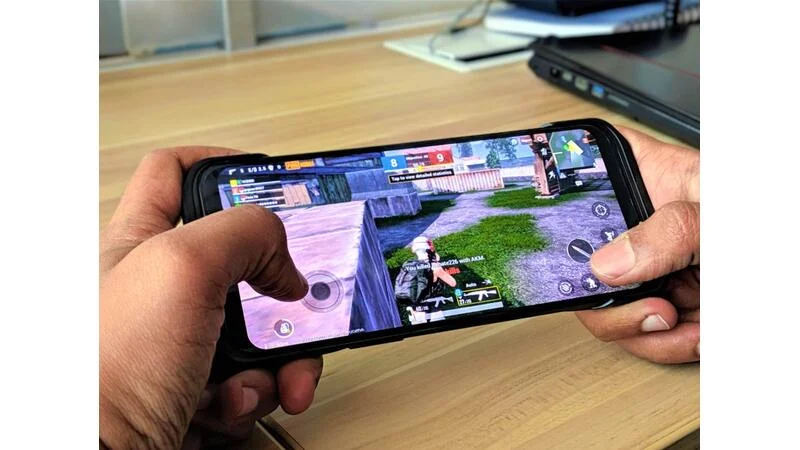
Thermal throttling is your phone’s defense mechanism. It reduces CPU and GPU speed to bring temperatures down. A CPU under thermal throttling can perform up to 50% below its maximum capability depending on how severe the overheating is That is why you notice lag and frame drops even on a good phone.
But the bigger concern is long-term. Consistent overheating:
- Degrades battery capacity over time (Li-Ion batteries work best at 15–35°C)
- Shortens the overall lifespan of internal components
- Can cause permanent damage if the device repeatedly hits critical temperatures
This is not fear-mongering. It is basic electronics. Keeping your phone cool is not just about game performance it is about protecting a device you spent real money on.
Final Words About BGMI / Free Fire Overheating Solution
Overheating in BGMI and Free Fire is not a device problem for most players. It is a settings and habits problem. The fixes are free, take minutes to apply, and make a real difference.
Start with the basics lower graphics, close background apps, remove the case, stop charging while playing. If you are a serious daily grinder, add a phone cooler to your setup. Your phone will thank you. Your rank will too.
Frequently Asked Questions
Q1. Why does my phone heat up so fast while playing BGMI or Free Fire?
Ans. Your phone heats up because BGMI and Free Fire push your CPU and GPU hard at the same time handling graphics, network, audio, and physics all at once. Add background apps, high brightness, and a thick phone case, and your device crosses its thermal limit fast. Most Android phones start throttling performance at around 42–45°C to protect internal components.
Q2. Does playing BGMI or Free Fire while charging damage my phone?
Ans. Yes, over time it does. When you charge and game simultaneously, your battery and processor both generate heat at the same time. This double heat effect accelerates thermal stress, degrades battery capacity faster, and can shorten your device’s lifespan. Always charge your phone fully before long sessions instead.
Q3. Will lowering graphics settings actually stop my phone from overheating?
Ans. Yes it is the single most effective fix. Lower graphics reduce the load on your GPU, which directly lowers heat output. In BGMI, switching from Ultra HD to Smooth or Balanced can make a noticeable difference within minutes of gameplay. You lose some visual detail but gain stable FPS and a cooler device.
Q4. Do phone coolers actually work for BGMI and Free Fire?
Ans. They do help, especially for sessions longer than an hour. Clip-on semiconductor coolers can drop phone temperature by several degrees during active gameplay. They work best when combined with good habits like removing your case, lowering brightness, and closing background apps. A cooler alone won’t fix poor settings.
Q5. Which settings should I change in Free Fire to reduce overheating?
Ans. In Free Fire, set your resolution to Low or Medium, cap the frame rate at 60 FPS, and disable HDR if the option is available. Outside the game, lower your screen brightness to 40–60%, set your display refresh rate to 60Hz, and close all background apps before starting a match. These changes together make a real difference.
Must Read: Mobile Battery Drain Solution Real Causes And Solutions 2026
OnePlus Nord CE 6 Launch Date in India – TechWithTrend
5G Battery Drain Problem Real Causes and Practical Solutions