Why Android Storage Gets Full So Fast
How to Clear Storage on Android: Ever noticed how your phone feels brand new on day one and six months later it starts screaming “Storage Almost Full? Yeah, that’s not bad luck that’s just how Android works behind the scenes.
Thank you for reading this post, don't forget to subscribe!Your phone constantly saves temporary files, app data, images, and downloads. Over time, these pile up quietly like junk in a drawer. According to recent reports, cached files alone can take up 2–8GB of space, while apps and media can consume over 50GB on active devices
Hidden Storage Killers You Ignore
Most users blame apps, but the real culprits are sneakier:
- App cache (Instagram, Chrome, YouTube)
- WhatsApp media auto-downloads
- Duplicate photos and memes
- Forgotten downloads folder
- Offline videos and music
These don’t just eat storage they grow silently.
Real Impact on Performance
Storage isn’t just about space it directly affects speed. When your phone runs low on storage, it struggles to manage background tasks, causing lag, app crashes, and slower performance
Think of it like a messy room. The more clutter you have, the harder it is to move around.
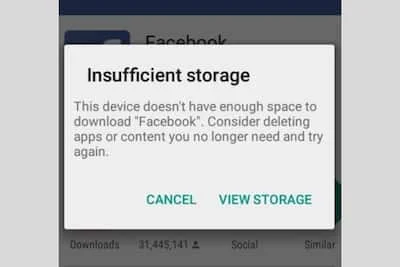
Check What’s Taking Space First
Before deleting anything, pause. Don’t go on a random deleting spree. Android already gives you a built-in storage breakdown. Use it.
How to Use Storage Dashboard
Go to: Settings → Storage
- Apps
- Photos & Videos
- Audio
- Downloads
- System
This screen acts like a map of your storage. It tells you exactly where the problem is.
If apps are taking 40GB, deleting photos won’t help much. Be smart, not aggressive.
Clear App Cache (Safest & Fastest Method)
If there’s one method that gives instant results without risk, it’s this. Cache is temporary data apps store to load faster. Over time, it becomes useless junk.
Experts say clearing cache can free up several gigabytes and improve performance instantly
Steps to Clear Cache
- Go to Settings
- Tap Apps
- Select any app
- Tap Storage & Cache
- Click Clear Cache
Repeat for heavy apps like Chrome, Instagram, or YouTube.
Cache vs Data (Important Difference)
| Action | What Happens |
| Clear Cache | Deletes temporary files (safe) |
| Clear Data | Deletes login, settings, files |
Stick to cache unless you know what you’re doing.
Delete Unused Apps
Let’s be honest you’ve installed apps “just to try” and never opened them again.
These apps sit quietly, eating storage.
Identify Storage-Hungry Apps
Go to: Settings → Apps → Sort by Size
- Games (1–5GB each)
- Video editing apps
- Social media apps
Deleting just 2–3 large apps can free 5–10GB instantly.
If you haven’t used an app in 30 days, it’s probably not essential.
Clean Photos & Videos
Photos and videos are the biggest storage hogs. One 4K video alone can take hundreds of MB.
Use Cloud Backup Smartly
Instead of deleting memories:
- Upload to Google Photos
- Enable backup
- Delete local copies
Android officially recommends removing backed-up photos to save space
This way, you keep your memories without sacrificing storage.
Remove Downloads & Duplicate Files
Your Downloads folder is like a digital junkyard. PDFs, memes, APK files, screenshots it all piles up.
Open your file manager and check:
- Downloads folder
- Screenshots
- Duplicate images
Deleting unused files here can easily free 1–5GB.
Clear WhatsApp & Social Media Storage
WhatsApp is one of the biggest hidden storage hogs. Auto-downloaded videos, forwards, and images can take 3–15GB
Go to: WhatsApp → Settings → Storage & Data → Manage Storage
Delete:
- Large videos
- Forwarded media
- Duplicate files
Do the same for Telegram and Instagram.
Use Built-in Android Cleaning Tools
Most Android phones now come with a cleaner.
Examples:
- Device Care (Samsung)
- Cleaner app (Xiaomi, Realme)
- Files by Google
These tools safely remove:
- Junk files
- Cache
- Duplicate files
They’re better than third-party apps, which can be risky.
Move Files to SD Card or Cloud
If your phone supports an SD card, use it.
Move:
- Videos
- Photos
- Music
Or use cloud services like Google Drive.
This doesn’t delete anything it just shifts the load.
Delete Offline Content (Netflix, YouTube, etc.)
Downloaded content is sneaky. Offline videos from Netflix or YouTube can take 2–10GB easily
Open these apps and remove:
- Old downloads
- Watched content
You’ll be surprised how much space comes back.
Empty Trash & Recycle Bin
Deleting files isn’t enough. Most apps store deleted files in a Recycle Bin for 30 days
Check:
- Gallery trash
- Google Photos bin
- File manager recycle bin
Empty it manually to actually free space.
Advanced Fixes for Other Storage
“Other” or “System” storage is the most confusing part.
System Cache Issues
Sometimes, Android keeps:
- Old update files
- System logs
- Hidden cache
These can grow after updates and even reach several GB
Fixes:
- Restart your phone
- Clear cache of Google Play Services
- Update your system
Worst case? Factory reset (only if necessary).
Apps You Should Avoid for Cleaning
Don’t install random “RAM cleaner” or “boost apps.”
Many of them:
- Drain battery
- Show ads
- Collect data
Android already manages memory efficiently.
Stick to built-in tools.
Pro Tips to Prevent Storage Issues
Want to avoid this problem forever?
Follow these habits:
- Clear cache once a month
- Disable auto-download in WhatsApp
- Use cloud backup
- Avoid installing unnecessary apps
- Check storage weekly
Think of it like brushing your teeth small habits prevent big problems.
Common Mistakes to Avoid
People often make these mistakes:
- Deleting important files randomly
- Clearing app data instead of cache
- Installing fake cleaner apps
- Ignoring storage warnings
Be careful. Smart cleaning beats aggressive cleaning.
How Much Space Can You Actually Free?
| Method | Estimated Space Freed | Impact Level |
| Cache Clearing | 1 – 5 GB | (Safe & Fast) |
| Deleting Unused Apps | 5 – 15 GB | (High Impact) |
| Media Cleanup (WhatsApp/Photos) | 10 – 30 GB | (Maximum Gain) |
| Downloads Folder Cleanup | 1 – 5 GB | (Quick Win) |
| Total Potential Savings | 20 – 50 GB+ | Like a Brand New Phone! |
Total potential: 10–30GB or more depending on usage
That’s like getting a brand-new phone without spending money.
Final Words About How to Clear Storage on Android
Clearing storage on Android isn’t complicated it’s just about being intentional. Most storage issues come from a few predictable sources like cache, unused apps, and media files. Once you understand where your space goes, fixing the problem becomes easy and fast.
You don’t need fancy apps or risky tools. Just use built-in settings, clean regularly, and stay mindful of what you install and download. Your phone will stay fast, smooth, and frustration-free.
FAQ
Q1. Does clearing cache delete my photos or data?
Ans. No. Clearing cache only removes temporary files. Your personal data stays safe.
Q2. How often should I clear storage on Android?
Ans. Once every 2–4 weeks is enough for most users.
Q3. Why is my storage full even after deleting files?
Ans. You may need to empty the recycle bin or clear hidden cache files.
Q4. Is it safe to use cleaner apps?
Ans. Stick to built-in tools. Third-party apps can be risky.
Q5. What is “Other storage” on Android?
Ans. It includes system files, hidden cache, and app data that isn’t categorized clearly.
Must Read: TechWithTrend – Tech News, Mobile Tips & Tricks for India