5G Battery Drain Problem: You upgraded to a 5G phone. The speed felt amazing. And then you noticed something the battery icon was running scared like it owed someone money.
Thank you for reading this post, don't forget to subscribe!You are not imagining it. 5G does drain battery faster than 4G. But here’s the good news you do not have to choose between speed and battery life. You just need to understand what is happening inside your phone and make a few smart adjustments.
This guide covers the real reasons behind 5G battery drain, the best 5G settings for long battery life, and practical steps for both Android and iPhone users. Let us get into it.
Why Does 5G Drain Battery Faster? (The Real Explanation)
Before jumping to solutions, it helps to understand the problem. Most people assume 5G drains battery just because it is fast. That is partially true but the full picture is more interesting.
1. Your Phone Is Running Two Radios at Once
Most 5G networks today use what is called NSA (Non-Standalone) architecture. This means your phone connects to both 4G and 5G simultaneously the 4G handles control signals while 5G carries the data. You are essentially powering two radios at the same time. That is a significant energy cost, and it is one of the biggest contributors to 5G battery drain.
As carriers shift to SA (Standalone) 5G in the coming years, this dual-connection problem will disappear. But for now, it is real.
2. Signal Hunting Is a Battery Killer
5G coverage is still expanding. If you are in an area where the signal is weak or patchy, your phone works harder to maintain that connection. It keeps “hunting” for a strong 5G tower ramping up modem power, generating heat, and draining your battery in the process. According to research cited by Batteries Plus, a weak signal is the number one cause of cellular battery drain, not the technology itself.
3. Faster Speeds Lead to More Data Usage (Without You Realising It)
When your phone connects to 5G, apps quietly take advantage of the speed. Video apps switch to 4K automatically. Background downloads kick in. Cloud sync speeds up. All of this extra data activity demands more from your processor (CPU and GPU), which indirectly burns through battery even when you are not actively using the phone.
4. Background App Activity Spikes on 5G
Some apps are designed to refresh more aggressively on faster networks. Social media apps, messaging platforms, news apps — they all update in the background and push more data when the connection allows. Research from 2025 found that background processes account for around 35% of daily battery power consumption on modern smartphones.
By the Numbers
Research and data from multiple sources puts the 5G battery drain increase at roughly 6% to 20% more than 4G LTE, depending on signal conditions, the phone model, and usage patterns. The gap is narrowing as newer chipsets (like Snapdragon 8 Gen 2 and 3) become more efficient but it has not disappeared yet.
Quick Summary: 5G Battery Saving Settings at a Glance
| Action | Platform | Where to Find It |
| Enable 5G Auto (Smart Data Mode) | iPhone | Settings → Cellular → Cellular Data Options → Voice & Data |
| Enable Adaptive Connectivity | Android | Settings → Network & Internet → Adaptive Connectivity |
| Switch to LTE only | Both | Cellular / Mobile Network settings |
| Disable Background App Refresh | Both | Settings → General / Apps & Notifications |
| Use Wi-Fi whenever possible | Both | Wi-Fi settings / Control Center |
| Enable Low Power / Battery Saver | Both | Settings → Battery |
| Enable Dark Mode (OLED screens) | Both | Settings → Display & Brightness |
How to Save Battery on 5G: Settings That Make a Real Difference
Now let us talk solutions. These are not vague tips like “use your phone less.” These are specific settings that target the actual problem.
Enable Smart 5G Mode (iPhone Users)
Apple introduced Smart Data Mode a feature that automatically switches between 5G and LTE based on what you are doing. If the task does not genuinely benefit from 5G (like sending a WhatsApp message), your iPhone drops to LTE and saves power. When you start streaming video or downloading a large file, it switches back to 5G.
Here is how to turn it on:
- Open Settings
- Tap Cellular
- Tap Cellular Data Options
- Tap Voice & Data
- Select 5G Auto
Avoid selecting “5G On” that forces 5G even when it adds no value and just drains your battery unnecessarily. According to Apple Support, this is the recommended setting for balancing speed with battery efficiency.
Use Adaptive Connectivity on Android
Android has its own version of this called Adaptive Connectivity on most Google Pixel phones and similar features on Samsung devices.
To enable it:
- Go to Settings → Network & Internet → Adaptive Connectivity
- Toggle it on
For Samsung users: Go to Connections → Mobile Networks → Network Mode and switch to LTE/3G/2G (auto connect) if you are in an area with poor 5G coverage. This stops your phone from constantly searching for a 5G signal that is not strong enough to be useful.
Disable 5G to Save Battery in Low-Coverage Areas
If you spend most of your day in an area with weak or no 5G coverage, the smartest move is to manually switch to 4G/LTE. Your phone stops the energy-expensive signal hunting entirely.
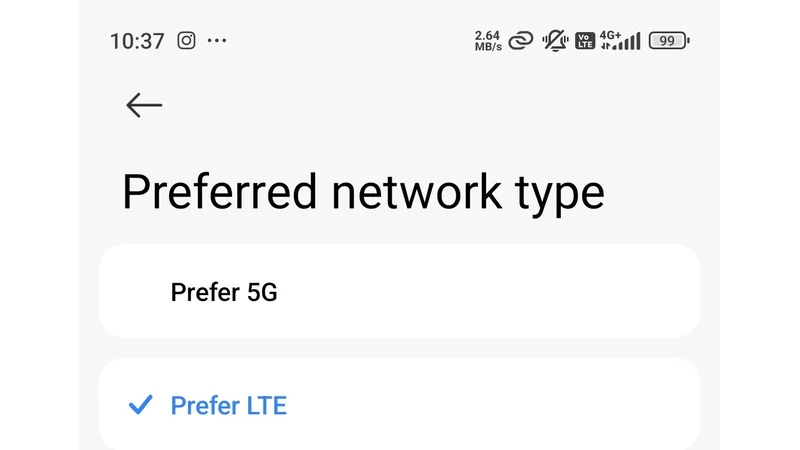
On Android:
Settings → Network & Internet → SIMs → Preferred network type → LTE
On iPhone:
Settings → Cellular → Cellular Data Options → Voice & Data → LTE
This is a simple way to extend battery life with 5G settings when you do not actually need 5G speeds. Honestly, 4G is fast enough for calls, messaging, social media scrolling, and even video streaming. You will not miss the extra speed most of the time.
How to Improve Phone Battery Backup: Additional Tips
Beyond network settings, several other adjustments can make a noticeable difference in how long your phone lasts through the day.
Turn Off Background App Refresh
Background app refresh lets apps silently update content even when you are not using them. On 5G, this becomes even more aggressive because apps detect a fast connection and take full advantage.
On Android:
Settings → Battery → Background Usage → Turn off for non-essential apps
On iPhone:
Settings → General → Background App Refresh → Off (or set to Wi-Fi only)
One user on Medium reported that after restricting background activity, their overnight drain dropped from 10% to 3%. That is a meaningful difference without any loss in usability.
Use Wi-Fi Instead of 5G Whenever Possible
Wi-Fi is significantly more power-efficient than any cellular network. When you are at home, at work, or in a café — connect to Wi-Fi. If you want to go a step further, disable mobile data entirely when on Wi-Fi to prevent background processes from using the 5G connection alongside it.
This is one of the most effective, low-effort changes you can make to save battery on 5G devices.
Manage Screen Brightness and Refresh Rate
This has nothing to do with 5G directly, but the screen is a major battery consumer. On phones with high refresh rate displays (90Hz or 120Hz), switching to a lower refresh rate during normal usage can save meaningful battery.
Also, dark mode on OLED/AMOLED screens is not just a visual preference black pixels on OLED screens are physically switched off, consuming no power. Enabling dark mode can have a real impact on battery endurance throughout the day.
Enable Battery Saver Mode Intelligently
Low Power Mode on iPhone and Battery Saver on Android both reduce background activity, lower screen brightness, and limit 5G usage. These modes are not just for emergencies you can activate them proactively when you know it will be a long day away from a charger.
On iPhone running newer iOS versions, you can also customise Low Power Mode to disable 5G specifically while keeping notifications and other functions running normally.
Check Battery Health
If you have tried everything and your phone still struggles to last through the day, the problem might not be 5G at all. Lithium-ion batteries degrade over time. Most manufacturers recommend considering a battery replacement when battery health drops below 80%. You can check this under Settings → Battery on both iOS and Android (some Android brands also show this now).
A degraded battery simply cannot hold charge the way it used to no software setting will fix that.
Common Mistakes People Make When Trying to Save Battery
A few things people try that actually do not help or make things worse:
Third-party battery saver apps
These apps claim to kill background processes and optimise RAM, but modern Android handles this automatically. A third-party app running constantly in the background can ironically drain more battery than it saves.
Force-closing all apps
Constantly swiping away apps from recent apps does not save battery. Android and iOS are designed to manage suspended apps efficiently. Force-closing them causes more battery drain when you reopen them and the app has to reload from scratch.
Keeping brightness at maximum
Outdoor use sometimes demands it, but if you are indoors, dropping brightness to 50% or enabling auto-brightness can reduce display battery drain noticeably.
What About the Future of 5G Battery Life?
Here is something worth knowing: the current battery drain issue with 5G is a temporary problem, not a permanent one.
As telecom providers complete the transition from NSA (Non-Standalone) 5G to SA (Standalone) 5G, phones will only need to maintain one network connection instead of two. The dual-radio problem disappears. Additionally, new chipsets from Qualcomm and MediaTek continue to improve modem efficiency with every generation.
The general expectation among industry analysts and manufacturers is that the battery difference between 5G and 4G will become negligible as infrastructure matures. In the meantime, smart settings not frustration are your best tool.
Final Words About 5G Battery Drain Problem
5G battery drain is real, but it is manageable. The biggest culprit is not the speed itself it is the signal hunting, the dual-network connection, and the background apps that get excited when they see a fast connection.
The smartest fix is not to disable 5G permanently. It is to let your phone use 5G when it actually helps and switch to 4G the rest of the time. That is exactly what Smart 5G Mode (iPhone) and Adaptive Connectivity (Android) are designed to do.
A few small changes in your settings can add hours to your daily battery life. And if the phone still dies early despite all of this, it might be time to check that battery health because sometimes the problem is not 5G. Sometimes it is just an ageing battery that needs to be replaced.
Frequently asked questions
Q1. Does 5G really drain battery faster than 4G?
Ans. Yes, it does but the gap is smaller than most people think. Research shows 5G can drain battery roughly 6% to 20% faster than 4G LTE depending on signal strength, phone model, and how you use your device. The main reason is that most phones today run on NSA (Non-Standalone) 5G, which forces them to maintain a connection to both 4G and 5G simultaneously — essentially running two radios at once.
Q2. What is signal hunting and why does it drain battery?
Ans. Signal hunting happens when your phone is on the edge of 5G coverage. Instead of locking onto a stable signal, your modem keeps searching for a stronger 5G tower ramping up power output, generating heat, and burning through battery in the process. This is actually the biggest battery killer, not the 5G speed itself. If you are in a weak 5G area, switching to 4G/LTE manually will immediately help.
Q3. What is Smart 5G mode and should I use it?
Ans. Smart 5G mode (called “5G Auto” on iPhone and “Adaptive Connectivity” on Android) automatically switches between 5G and 4G based on what you are doing. If you are just texting or checking email, it drops to 4G. When you stream video or download a file, it switches back to 5G. This is the single best setting to enable on any 5G phone — you get the speed when it matters and save battery the rest of the time.
Q4. How do I enable Smart 5G mode on iPhone?
Ans. Go to Settings → Cellular → Cellular Data Options → Voice & Data → select “5G Auto”. This activates Apple’s Smart Data Mode, which intelligently balances 5G usage and battery life. Avoid selecting “5G On” — that forces 5G at all times and drains battery unnecessarily. If you want maximum battery savings and do not need 5G, select “LTE” to disable 5G completely.
Q5. How do I save battery on a 5G Android phone?
Ans. Go to Settings → Network & Internet → Adaptive Connectivity and toggle it on. This is the Android equivalent of iPhone’s Smart Data Mode. For Samsung users, go to Connections → Mobile Networks → Network Mode and select LTE/3G/2G (auto connect) when you are in a poor 5G coverage area. You can also go to Settings → Network & Internet → SIMs → Preferred network type → LTE to switch off 5G entirely.
Q6. Should I disable 5G permanently to save battery?
Ans. Not necessarily. Disabling 5G entirely is a good option if you are in a weak coverage area or you need your phone to last through a very long day. But in areas with strong 5G coverage, using Smart 5G mode or Adaptive Connectivity gives you the best of both worlds speed when you need it, battery savings when you do not. Think of it as a situational choice, not a permanent one.
Q7. Why does background app activity worsen 5G battery drain?
Ans. Many apps are designed to refresh more aggressively when they detect a fast internet connection. On 5G, apps like social media, email clients, and cloud sync tools push more data in the background without you realising it. Research shows background processes account for around 35% of daily battery consumption on modern smartphones. Turning off background app refresh for non-essential apps in Settings can make a noticeable difference.
Q8. Does switching to Wi-Fi really save battery compared to 5G?
Ans. Yes, significantly. Wi-Fi is much more power-efficient than any cellular network, including 5G. Whenever you are at home, at work, or in a location with a reliable Wi-Fi connection, switch to Wi-Fi. You can go one step further by turning off mobile data entirely while on Wi-Fi this stops background apps from using your 5G connection alongside Wi-Fi.
Q9. My phone battery still dies fast even after changing 5G settings. What else can I try?
Ans. Check your battery health first. Lithium-ion batteries degrade over time, and once battery health drops below 80%, no software setting can compensate for the lost capacity. You can check this in Settings → Battery on both iPhone and Android. Also look into reducing screen brightness, enabling dark mode on OLED screens, turning off Always-On Display, and disabling background app refresh for apps you do not actively use.
Q10. Will 5G battery drain improve in the future?
Ans. Yes, and it already is improving with each phone generation. The current dual-radio problem exists because most networks use NSA (Non-Standalone) 5G architecture. As carriers complete the transition to SA (Standalone) 5G, phones will only need one active radio eliminating a major source of drain. Newer chipsets like Snapdragon 8 Gen 2 and 3 are already significantly more efficient than early 5G chips. The expectation across the industry is that the battery gap between 5G and 4G will become negligible in the coming years.