How to fix App Not Installed Error on Android: You tap install. You wait. And then App Not Installed. That’s it. No explanation, no helpful hints, just four words standing between you and the app you wanted. Frustrating, right?
Thank you for reading this post, don't forget to subscribe!The good news is this error is almost never permanent. In most cases, it comes down to a handful of fixable causes and this guide covers all of them, in plain English, without making your head spin.\
Let’s get into it.
What Does the App Not Installed Error Actually Mean?
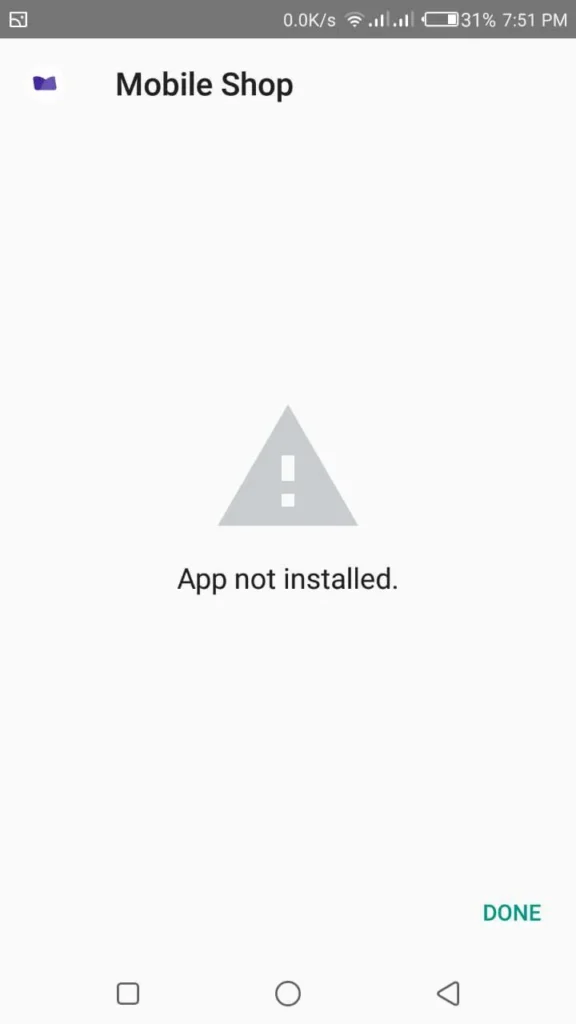
The “App Not Installed” error appears when Android rejects an app installation before it completes. You’ll typically see it when sideloading an APK file (installing outside the Google Play Store).
this error can occur due to multiple reasons insufficient storage, compatibility conflicts, corrupted files, or blocked security permissions.
It is not a sign of a broken phone. In nearly all cases, it’s a software-level issue you can fix yourself in minutes.
Quick-Reference App Not Installed
| Cause | Potential Fix |
| Insufficient Storage | Free up 1–2GB of internal storage and retry. |
| Corrupted APK File | Delete the current file and re-download from a trusted source. |
| Unknown Sources Blocked | Go to Settings → Apps → Special Access → Install Unknown Apps. |
| Version Conflict | Uninstall any existing/older version of the app before installing. |
| APK on SD Card | Move the APK file to Internal Storage before running the installer. |
| SD Card Issues | Ensure SD card is properly mounted or try removing it temporarily. |
| Installer Cache Glitch | Clear Cache/Data for the Package Installer system app. |
| Play Store Interference | Clear Play Store cache or temporarily disable Play Protect. |
| OS Incompatibility | Ensure the APK supports your current Android version. |
| System Settings Conflict | Perform a Reset App Preferences in your System Settings. |
Common Causes of the “App Not Installed” Error
Before jumping to fixes, let’s understand why this happens. The cause determines the right solution guessing wastes time.
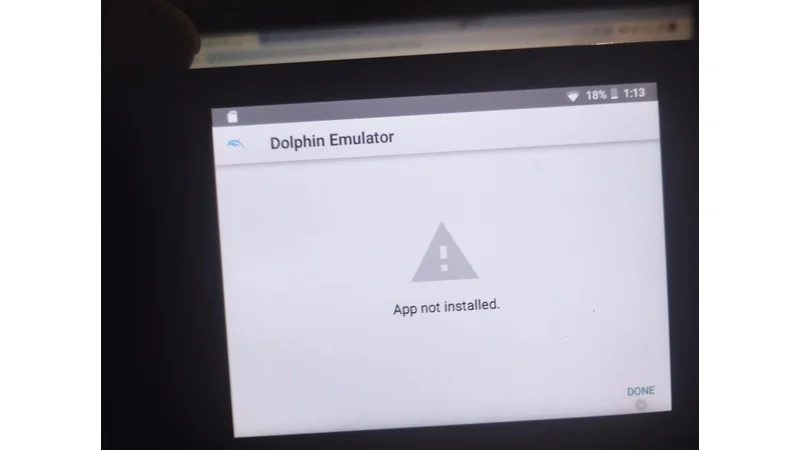
Here are the most common culprits:
- Insufficient storage Not enough free space to unpack and install the APK
- Corrupted APK file The file was damaged or incompletely downloaded
- Unknown sources not enabled Android blocks third-party installs by default
- Conflicting app version An older version of the same app is already installed
- SD card issues The APK is stored on an unmounted or faulty SD card
- Incompatible Android versionThe app requires a newer (or older) OS version
- Google Play Protect blocking the install Android’s security layer flags the file
Now let’s fix them one by one.
Fix 1: Restart Your Android Device
Start here. Always.
A quick restart clears temporary glitches and refreshes system processes that may be blocking the installation. It takes 30 seconds and costs nothing.
Long press the power button → tap → Restart → try installing again.
If the error disappears after a restart, you’re done. If not, move on.
Fix 2: Free Up Storage Space
This one catches people off guard. Your phone might look fine, but it needs more free space than just the APK file size.
Android typically requires at least 2–3x the file size of the APK itself to unpack and install the app. Devices with 16GB or 32GB of total storage are especially vulnerable to this issue. As a general rule, keep at least 1–2GB of free internal storage available to allow smooth app installations.
How to check and free up storage:
Go to Settings → Storage to see what’s eating your space.
Quick ways to clear it:
- Uninstall apps you no longer use
- Delete files from your Downloads folder
- Manage offline media from streaming apps like Spotify, Netflix, and YouTube Premium these downloads can quietly eat gigabytes of space
- Move photos and videos to Google Photos or a PC
Once you have enough breathing room, try the installation again.
Fix 3: Enable “Install Unknown Apps” Permission
This is the most common reason the error appears when sideloading APKs.
By default, Android blocks installations from outside the Google Play Store. You have to manually allow it — and the steps differ slightly based on your Android version.
Android 8.0 and above (most modern phones):
On Android 13 or 14, open Settings → Apps → Special app access → Install unknown apps, then toggle on the source you want your browser, file manager, or a specific app.
Since Android 8.0 (Oreo), the old global “Unknown sources” switch was replaced by a per-app permission. You grant it to the installer app (browser or file manager), not system-wide.
Android 7.0 and earlier:
Go to Settings → Security → Unknown sources and enable the single global toggle.
Quick tip: After installing your app, it’s good practice to turn this permission back off. Keeps your device safer.
Fix 4: Delete the Old APK and Re-Download It
If the APK file got corrupted during download which happens more often than you’d think Android simply won’t install it.
To fix this, delete the existing APK and re-download it from a reliable source. Make sure the file is fully downloaded before attempting installation.
Only download APK files from trusted sources. Reputable options include the app’s official website, APKMirror, or the developer’s own distribution page.
Avoid random APK sites. Some of them exist specifically to serve modified or malware-laced files. Not worth it.
Fix 5: Uninstall the Existing Version of the App
Here’s a sneaky one. If you already have the app installed on your phone and you’re trying to install a different version (especially from a different source), Android may refuse it.
If you see a “Signature Mismatch” error, the new version may be signed differently. Try uninstalling the existing version of the app, restart your phone, then attempt the fresh installation.
This often fixes it immediately. The signature conflict is essentially Android saying: “This doesn’t match what I already have, so no.”
Go to Settings → Apps → [App Name] → Uninstall, then reinstall.
Fix 6: Move the APK to Internal Storage
Trying to install an APK directly from your SD card? That might be your problem.
If the APK is downloaded or stored on external/mounted storage, in many cases it will fail to install due to file parsing issues. The best solution is to download the APK onto your internal storage and try installing from there.
Use your file manager app to copy the APK from your SD card to internal storage, then tap it to install.
Simple fix. Often overlooked.
Fix 7: Check SD Card Mount Status
If your SD card isn’t properly mounted, any app trying to install to it will fail with you guessed it “App Not Installed.”
Try these steps if you think the error relates to your SD card: Restart your device first, as this can resolve SD card recognition issues. Then, remove the SD card, clean it gently with a soft cloth if needed, reinsert it, and power the device back on.
If the card is corrupted or formatted incorrectly, you may need to reformat it. Just back up your data first formatting erases everything on the card.
Fix 8: Clear Cache of the Package Installer
The Package Installer is the Android system component responsible for installing apps. If its cache is cluttered or corrupted, installations can fail silently.
Here’s how to clear it:
- Go to Settings → Apps (or Apps & notifications)
- Tap the three-dot menu (top right corner) → Show system apps
- Find Package Installer
- Tap Storage → Clear Cache
Try the installation again. This often resolves edge cases where nothing else seems to work.
Fix 9: Clear Google Play Store Cache
Even when installing APKs manually, Google Play Store can interfere with the process. Clearing its cache is a quick fix worth trying.
Go to Settings → Apps → Google Play Store → Storage, then tap **Clear Cache and Clear Data. Restart your phone and try installing again.
If this doesn’t work, you can also try removing and re-adding your Google account: Settings → Accounts → Google, remove the account, restart, and sign back in.
Fix 10: Check Android Version Compatibility
Every app has minimum system requirements. If the app needs Android 10 but your phone runs Android 8, the install will fail no exceptions.
Check if your device meets the app’s minimum requirements by verifying your Android version under **Settings → About Phone → Android Version**.
If your OS is out of date and your device supports an update, go to Settings → Software Update and install it.
If the app is simply too new for older hardware, try finding an older compatible version from a trusted APK source.
Fix 11: Reset App Preferences
Sometimes a permission or setting got changed somewhere along the way and you can’t easily track it down. Resetting all app preferences restores defaults without deleting any apps or data.
Go to Settings → Apps → tap the three-dot menu → Reset App Preferences.
This resets disabled apps, background data restrictions, permission settings, and default apps — any of which could be quietly blocking installation.
It’s a safe step and sometimes surprisingly effective.
Fix 12: Check If Google Play Protect Is Blocking the Install
Google Play Protect is Android’s built-in security scanner. It’s generally useful but occasionally overzealous.
Play Protect continues to scan sideloaded apps and may warn or block those it considers harmful. Keep it enabled for security, but if you trust the source, you can choose to install anyway when the warning appears.
When Play Protect shows a warning, you’ll typically see an option that says Install anyway or More details. If you’re confident in the source, you can proceed.
Never disable Play Protect entirely. Just handle it on a case-by-case basis.
How to Avoid This Error in the Future
Prevention is better than troubleshooting at midnight.
A few simple habits keep this error away:
- Keep at least 1–2GB of internal storage free at all times
- Update your Android OS regularly compatibility improves with every update
- Only download APK files from official or well-known trusted sources
- Re-disable Unknown Sources after sideloading an app
- Keep Google Play Protect enabled it scans even sideloaded apps
Keeping your Android OS updated helps improve compatibility with new apps and fixes system bugs that could interfere with installations.
Final Words About How to fix App Not Installed Error on Android
The “App Not Installed” error on Android looks alarming, but it rarely is. It’s Android being cautious sometimes overly so and most fixes take under two minutes.
Start with the simple stuff: restart, check storage, enable unknown sources. If those don’t work, try clearing the Package Installer cache or uninstalling the existing app version. Nine times out of ten, one of these fixes will solve it.
If nothing works and the app is genuinely important, consider using the Google Play Store version if available it handles all compatibility and signature checks automatically.
Good luck, and may your next install go smoothly.
Frequently Asked Questions
Q1. Why does my Android phone say “App Not Installed”?
Ans. Android shows this error when it cannot complete the installation of an APK file. The most common reasons include insufficient storage space, a corrupted APK file, unknown sources not being enabled, or a conflicting older version of the app already installed on the device.
Q2. How do I fix the “App Not Installed” error on Android?
Ans. Start by restarting your device. Then check if you have enough free storage (at least 1–2GB is recommended). Make sure “Install Unknown Apps” is enabled in your settings. If the problem continues, delete the APK file and re-download it from a trusted source.
Q3. How do I enable Unknown Sources on Android?
Ans. On Android 8.0 and above, go to Settings → Apps → Special App Access → Install Unknown Apps, then select your browser or file manager and toggle on “Allow from this source.” On older Android versions, go to Settings → Security → Unknown Sources and enable the global toggle.
Q4. Does “App Not Installed” mean my phone is damaged?
Ans. No. This error is almost always a software-level issue. It is not a sign of hardware failure. In most cases, it can be resolved through simple settings changes or by re-downloading the APK file.
Q5. Can a corrupted APK file cause the “App Not Installed” error?
Ans. Yes. If the APK file was not fully downloaded or got damaged during the download process, Android will reject it. Delete the file and download it again from a reliable and trusted source before trying to install it.
Q6. Why does the app fail to install even after enabling Unknown Sources?
Ans. There could be several reasons. You may have an older conflicting version of the app already installed. The APK might be stored on an SD card instead of internal storage. The file could still be corrupted. Or Google Play Protect may be blocking the installation as a security precaution.
Q7. How much free storage do I need to install an APK file?
Ans. Android typically needs around 2 to 3 times the APK file size to unpack and complete the installation. As a general rule, keeping at least 1 to 2GB of free internal storage available helps prevent installation failures.
Q8. Can installing an APK from an SD card cause this error?
Ans. Yes. If the APK is stored on an SD card that is not properly mounted, or if the card is corrupted, the installation will fail. The recommended fix is to move the APK file to your phone’s internal storage and then try installing it from there.
Q9. Will clearing the Package Installer cache fix the “App Not Installed” error?
Ans. It can. The Package Installer is the system component that handles all app installations on Android. If its cache is outdated or corrupted, installations may fail. Go to Settings → Apps → Show System Apps → Package Installer → Storage → Clear Cache and try again.
Q10. Is it safe to install APK files from outside the Google Play Store?
Ans. It depends on the source. APK files from official developer websites or trusted platforms are generally safe. However, downloading APKs from random or unverified websites carries real risks including malware and data theft. Always keep Google Play Protect enabled and only download from sources you trust.
Must Read: How to Speed Up Your Android Phone Practical Tips That Actually Work
How to fix BGMI / Free Fire Overheating Solution: Fix Your Phone Before Gaming
How to Stop AI Features from Draining Your Smartphone Battery
Green Line And Pink Line on Your Phone Screen: Samsung, OnePlus, aur Nothing Users