How to Speed Up Your Android Phone: Your Android phone was fast once. Blazing fast. You tapped an app and it opened before you even finished the thought. Now? You tap, wait, sigh, and tap again. What happened?
Thank you for reading this post, don't forget to subscribe!The good news your phone probably isn’t broken. It’s just tired. And just like a tired person, it needs a little cleanup, some rest, and a few smart tweaks to get back on track.
This guide covers real, tested ways to speed up your Android phone no fluff, no random app downloads, no fake promises.
Quick Reference: Top Ways to Speed Up Your Android Phone
| What to Do | Where to Find It |
| Restart your phone | Power button > Restart |
| Clear app cache | Settings > Apps > [Select App] > Storage |
| Free up storage | Settings > Storage > Free up space |
| Speed up animations | Settings > Developer Options > Window/Transition Scale |
| Limit background apps | Settings > Battery > Battery Usage |
| Update your software | Settings > System > System Update |
| Check battery health | Settings > Battery > Battery Health & Diagnostics |
| Disable auto-sync | Settings > Passwords & Accounts |
Why Does Your Android Phone Slow Down Over Time?
Before you start fixing things, it helps to understand what’s actually going wrong.
Your Android phone could be slow because it’s low on memory, has too many apps running in the background, is using outdated software or hardware, or has a malware infection.
There’s also one thing most people overlook: animations. Android uses visual transitions for almost everything opening apps, switching screens, pulling down notifications. These look great, but they take time. More on that shortly.
Android phones now being supported with current software for longer than ever means you’ve got every reason to think about your phone the same way you do your car a little easy, occasional maintenance goes a long way.
1. Restart Your Phone (Seriously, Do It)
This sounds embarrassingly simple. But it works.
Restarting closes all apps and processes running in the background, freeing up resources to help things run faster. Temporary files and cached data accumulated over time can slow down your phone a simple restart can solve this. Sometimes, restarting can also trigger pending system updates, which can optimise performance and fix bugs.
Most people go weeks sometimes months without restarting. That’s weeks of background clutter piling up. A quick restart costs you 60 seconds. It’s worth it.
2. Uninstall Apps You Never Use
Superfluous apps do more than just collect virtual dust they actively work against your need for speed. They take up space in your phone’s internal storage, and abandoned apps often eat up resources by running needlessly in the background. Beyond that, they also open the door to some easily avoidable privacy compromises.
Go to Settings > Apps, sort by size or last used, and start deleting. Be ruthless. If you haven’t opened it in three months, it’s not coming back.
3. Clear App Cache (Not App Data There’s a Difference)
Cache files are temporary data that apps store to load faster next time. Smart idea in theory. In practice, they pile up and become dead weight.
Cache files, offline media, and leftover app data quietly pile up over time. Clearing this clutter can instantly restore responsiveness, especially on phones with limited internal storage.
To clear cache for a specific app:
Settings > Apps > [Select App] > Storage > Clear Cache
To clear system-level junk, you can also wipe the cache partition via Recovery Mode. Use the built-in Files / Storage Cleaner to delete unused downloads, duplicate photos, and offline videos.
One important note clearing cache is safe. Clearing app data resets the app entirely (like a fresh install). Don’t confuse the two.
4. Free Up Storage Space
Android phones slow down significantly when storage is nearly full. This isn’t a myth it’s how file systems work. When your storage is packed, your phone has no room to write temporary files efficiently.
Keeping on top of your phone’s storage can free up valuable space and help optimise performance. Move photos and videos to your computer or cloud storage apps like Google Photos or Dropbox work great for this. If your phone supports it, move apps to an SD card to free up internal storage.
For Pixel users, there’s a smart bonus: look for the “Smart Storage” option within the Files app settings. Activating it will allow your phone to automatically remove already-backed-up photos and videos whenever storage runs low taking all the heavy lifting out of your hands.
A good rule of thumb keep at least 15–20% of internal storage free at all times.
5. Speed Up Animations Using Developer Options
This is the most underrated trick on this list. Most people have never heard of it. And once you use it, you’ll wonder how you ever lived without it.
Android’s interface is full of animations app openings, screen transitions, notification shades. They look polished, but they slow things down. These animations are part of Material Design, Android’s design system. On slower devices, default animations might feel too lengthy, emphasizing lag. Adjusting the scales can make both slow and fast devices feel more immediate.
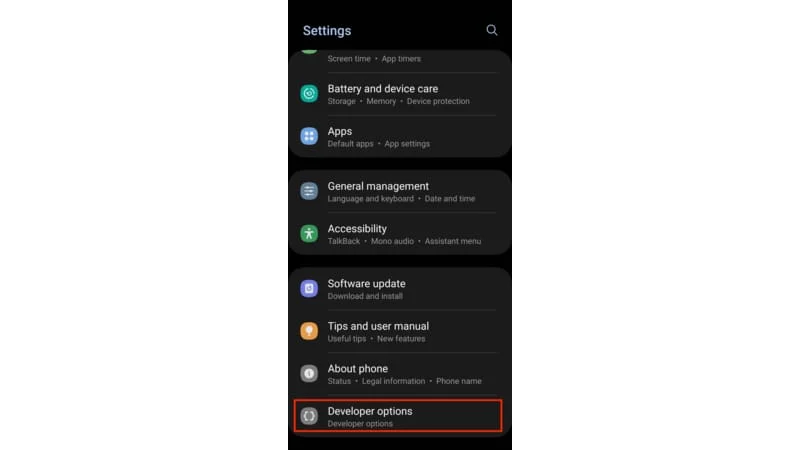
Step 1: Go to Settings > About Phone
Step 2: Find Build Number and tap it seven times. You’ll see a message saying “You are now a developer!” (Yes, really.)
Step 3: Go back to Settings > System > Developer Options
Step 4: Scroll down and find these three settings:
- Window Animation Scale
- Transition Animation Scale
- Animator Duration Scale
Step 5: Set all three to 0.5x to make the animations twice as fast.
Setting scales to 0 removes animations entirely, but this can harm the user experience. Material design animations convey information eliminating them might make interactions less intuitive. 0.5x is the sweet spot.
The effect is immediate. Your phone won’t actually process faster but it will feel significantly snappier, which honestly matters just as much in everyday use.
6. Limit Background App Activity
Apps running in the background are silent performance killers. They consume RAM, drain your battery, and eat up mobile data all while you’re not even looking at them.
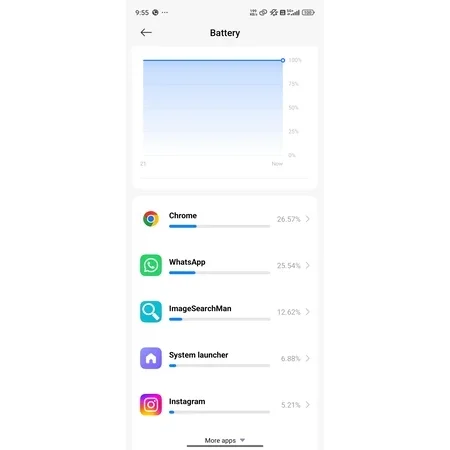
Too many apps running in the background slows your phone down especially in older models lacking suitable hardware for heavy multitasking. Certain app settings like auto-sync, location access, or background data transfers can slow down your Android phone, particularly if you have them enabled across lots of apps.
To fix this:
- Go to Settings > Battery > Battery Usage to see which apps are consuming the most power
- Tap on heavy-usage apps and restrict their background activity
- In Developer Options, you can also set Background Process Limit to a lower number (like 4 processes max)
Android’s Adaptive Battery technology learns individual usage patterns to optimize power allocation. It automatically limits background activity for rarely used apps, preserving battery life without user intervention.
If Adaptive Battery isn’t already on, turn it on. It does the heavy lifting so you don’t have to.
7. Keep Your Android Software Updated
Updates aren’t just for new features. They include performance improvements, memory management fixes, and bug patches that directly affect how fast your phone runs.
Check for updates under Settings > System > System Update.
Using outdated software is one of the most common reasons Android devices slow down. Manufacturers push optimizations regularly especially for older devices so staying updated is one of the easiest long-term performance habits you can build.
8. Check Your Battery Health
A degraded battery doesn’t just die faster it can affect how your phone performs under load.
Go to Settings > Battery > Battery Usage to see which apps are draining the most power. Some Androids including Google Pixel and Samsung devices include out-of-the-box battery diagnostic tools, usually found in Settings > Battery > Diagnostics. If your battery health is flagged as low, it may be time to consider replacing the battery.
Third-party apps like AccuBattery can also give you a detailed breakdown of battery capacity over time. If your phone is more than two or three years old and performance has noticeably declined, battery degradation might be a key factor.
9. Manage Notifications and Auto-Sync
Every ping, buzz, and background refresh takes a tiny toll on your phone’s resources. Multiply that by 40 apps, and it adds up fast.
Android’s granular notification controls let you prioritize notifications by app importance, silence non-essential alerts, or group similar notifications into manageable bundles.
On the sync side: go to Settings > Accounts and disable auto-sync for accounts you don’t need updating in real time. You can always sync manually when needed. This reduces background data transfers and frees up resources for what you’re actually doing.
10. Watch Out for Malware
If your phone slows down suddenly and nothing else explains it malware might be the reason.
A malware infection is one of the most common reasons why an Android device may have slowed down. Signs include sudden battery drain, unexpected data usage, unfamiliar apps, and overheating.
Use a reputable security app to run a scan. Stick to well-known names like Malwarebytes or the built-in Google Play Protect (found in the Play Store under your profile icon). Avoid random “phone cleaner” apps with thousands of fake reviews they often do more harm than good.
Final Words About
Speeding up your Android phone doesn’t require buying a new device or installing a dozen “booster” apps. Most of the best fixes are built right into your settings they’re just hidden behind menus most people never open.
Start with the basics: restart, clear cache, free up storage. Then move on to the developer options animation trick it’s genuinely surprising how much of a difference it makes. After that, tackle background apps, updates, and battery health.
Your phone’s best days might not be behind it. They might just be one settings change away.
FAQ: How to Speed Up Your Android Phone
Q1. Why is my Android phone suddenly slow?
Ans. Your Android phone can slow down due to too many background apps, low storage space, outdated software, a degraded battery, or even a malware infection. In most cases, a simple cleanup fixes the problem without needing a new device.
Q2. Does clearing cache speed up Android?
Ans. Yes. App cache files pile up over time and take up storage. Clearing them removes temporary junk without deleting your personal data. You can do it from Settings > Apps > [App Name] > Storage > Clear Cache.
Q3. What is the Developer Options trick to speed up Android?
Ans. Go to Settings > About Phone and tap Build Number seven times to unlock Developer Options. Then go to Settings > System > Developer Options and set Window Animation Scale, Transition Animation Scale, and Animator Duration Scale all to 0.5x. This makes your phone feel noticeably faster instantly.
Q4. How much free storage should I keep on my Android phone?
Ans. Keep at least 15–20% of your internal storage free at all times. When storage is nearly full, your phone struggles to write temporary files, which slows down performance across the entire system.
Q5. Is it safe to enable Developer Options on Android?
Ans. Yes, for basic tweaks like adjusting animation scales, Developer Options is completely safe. It is a built-in menu designed for tinkering with system settings. Just avoid making changes you do not understand, and you will be fine.
Q6. Do phone cleaner apps actually speed up Android?
Ans. Most “cleaner” or “booster” apps do very little and some can actually harm your phone’s performance. Android already manages memory on its own. Your best tools are the built-in settings already on your device.
Q7. Can a bad battery slow down my Android phone?
Ans. Yes. A degraded battery affects how your phone performs under load. Check battery health under Settings > Battery > Diagnostics (available on most Samsung and Google Pixel devices). If battery health is low, replacing it can significantly improve performance.
Q8. How often should I restart my Android phone?
Ans. Restarting your phone once every few days is a good habit. It clears background processes, flushes cached data, and can trigger pending system updates. It is one of the simplest and most effective ways to keep things running smoothly.
Must Read: support.google.com
How to Clear Storage on Android 2026: Free Space & Boost Speed
How to fix BGMI / Free Fire Overheating Solution: Fix Your Phone Before Gaming
How to Clear WhatsApp Storage Without Deleting Anything 2026