Phone Privacy Settings for Apps: Your phone is more intimate with you than your closest friend. It knows where you sleep, what you search at 2 AM, and which apps you open when you’re bored. And the worst of all? That data is being quietly gathered by most apps nowadays with your consent.
Thank you for reading this post, don't forget to subscribe!Yes, yours. You brought it to them. You only clicked on allow without reading a word.
This tutorial helps you to navigate the phone privacy settings of apps that do matter, both in Android and in the iPhone. No techno, no unneeded panic, just some steps that you can do today.
The Real Reason Why App Privacy Settings Matter
Let me have a word straight. It is not a question of paranoia. It has something to do with what you are supposed to.
As per a study by Now Secure in 2025, it was found that approximately 70 percent of Android applications not only accessed sensitive data but also tracking domains, and over 60 percent of applications sought permissions to either location, camera, or microphone. That is no minor bug that is the business model of many apps.
And the statistics are even more interesting. A 2025 study by Tenscope studied 100 most popular free apps in the US App Store, and concluded that they exhibit apparent trends of what the researchers term deceptive design, in which confusing menus and ambiguous wording masquerade as users granting them more permissions than they are aware of. Other reports have discovered that one in every five mobile apps demands more than one permission that is perceived to be excessive.
The good news? In the last year, a 2025 data privacy report showed that 85% of consumers deleted an app on their phone because of the privacy issue. Individuals are rising up.
You do not have to erase all. All you have to do is to know what settings to alter.
The Permission Problem: The reason applications request so much.
Think about this. You get a flashlight application. It requests permission to view your contacts. Why?
It doesn’t need your contacts. Your camera flash is required by a flashlight. Nothing else. This type of permission overreach is widespread, and it occurs because most apps are gathering data to sell to advertisers or apply them to track behavior.
The 2025 App Privacy Index lists Facebook and Instagram as having the same number of data points, 156 data points each, associated with users, with Threads following (154 data points each), all belonging to Meta. By far, the most data-hungry category is social media apps.
The average of user data collected by shopping apps is 17 types. Dating apps around 16. A lot of information to an application that simply has you swipe right.
The resolution is not dramatic. It’s just being deliberate about what you allow.
Setting Privacy in Apps in iPhones
Privacy is a selling point that Apple has made and rightfully so. Even iPhones are not private as such. You need to set them.
Access to Check Location First.
The most abused permission is the location. Most applications request your location as “Always” but few really require your location at all, much less all the time.
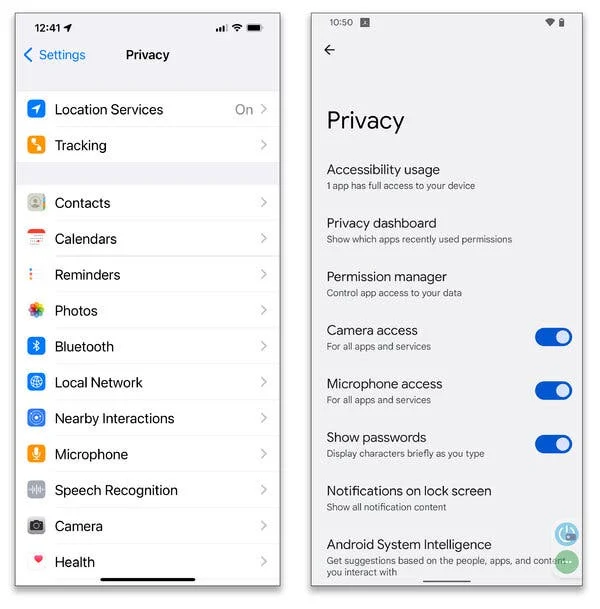
On the left hand side, open Settings/Privacy and Security/Location Services. You will be able to see all apps and their access level. On most apps, change this to either “While Using the App” or “Ask Every Time. Very few apps actually require that your location be running in the background.
Go to the bottom too and tap System Services Significant Locations. This feature stores a history of places you frequently visit. You may switch it off altogether, when it seems uncomfortable – and it ought to.
Switch Off Tracking of Apps.
The fresh feature of Apple, App Tracking Transparency (ATT) was a huge deal when it was first introduced. It makes applications seek permission to follow you in other applications and web sites.
Go to Settings Privacy and Security Tracking and switch off “Allow Apps to Request to Track.” This does not prevent the tracking activity, but it can prevent the cross-app data collection to a large extent.
Review Microphone and Camera Access.
This one causes people to feel nervous, and understandably so. Make sure which applications can access your camera and microphone.
Tap each category in the Settings Privacy and Security menu. When a recipe app has access to the microphone it is a warning. Take away anything that there is no apparent reason to retain.
Restrict Self-Collection of Data at Apple.
Apple gathers analytics information as well. In the system, visit the Settings/Privacy and security/Analytics and improvements/Share iphone analytics and turn it off, followed by going to the Settings/Privacy and security/Apple advertising/Personalized ads and disabling it too.
It won’t stop ads. But it prevents Apple targeting them with your behavior.
Android Apps privacy settings
Android provides you with greater control than most individuals know. The issue is that settings are hidden behind several levels of menus – nearly inaccessible.
Permission Manager.
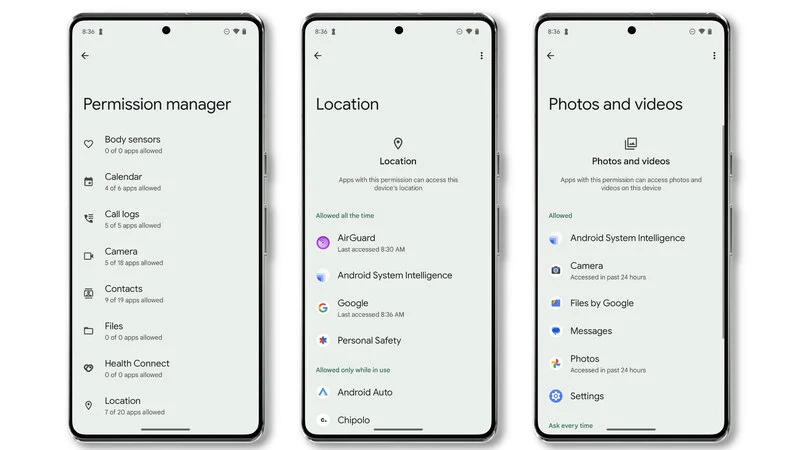
This is the greatest weapon in your hand. Open the settings and then Privacy and then Permission Manager (or search in the settings search bar)
All permissions will be displayed to you: location, camera, microphone, contacts, storage and so on. Tap each one. Check on the apps that can access it and the last time they accessed it. When an application has been using your microphone this past week and you do not recall any voice functionality, then it is worth looking into.
Android 11 and higher also allows granting one-time permissions to location, camera, and microphone. It is an excellent choice when there is only one feature that you need to use once.
Location to While using only.
Same as iPhone. Open up the settings and go to Privacy, then Permission Manager, then Location and change the majority of the apps to “Allow only when using the app” instead of allow all the time.
Only apps that actually require background location are navigation apps such as Google Maps – and even then, can be used with the while using option in most cases.
Erase Your Advertising ID.
The phone has a special Advertising ID that allows the companies to follow you through apps and create a behavior profile. On Android, you are able to delete it altogether.
Tap this button to delete your advertising ID and go to Settings Privacy Ads and tap Delete advertising ID. This does not stop advertisements, but it makes their targeting a lot more inaccurate. Just think of it as a little rebellion.
Try Android’s Private Space (Android 15+)
Google added a native Private Space feature as of Android 15. It allows you to isolate sensitive apps such as banking or health apps – behind an extra authentication. These applications can even be concealed beneath your primary account of apps.
Search “Private Space” in your system settings to set it up. On a Samsung phone, you should find **Secure Folder** – which does the same thing, but can be used on earlier versions of Android as well.
Allow Theft Detection Lock.
This was added to Google in late 2024. Theft Detection Lock is an app that relies on your phone sensors and AI to identify a sudden, violent motion that is typical of phone theft, and automatically lock your phone.
Located in the settings under the security and privacy section as device unlock: Theft Protection. It is turned off by default. Turn it on. It can save your information in five seconds and it can save your phone in case it is stolen.
The Settings Most People Miss on Both Platforms
They are applicable to Android and iPhone users and a majority of them do not even read them.
Audit App Notifications
This does not sound like anything to do with privacy. It isn’t. Notification access allows applications to access your lock screen content, including messages, bank notifications, and verification codes. Check your notification permissions and disable any application that does not require it.
Install Updates to Applications and operating systems.
One of the most frequent data breaches entry points is old software. Security patches fix vulnerabilities that are actively used by hackers. One of the easiest privacy actions you can take is to update your phone and apps.
Check What You Share with 3rd-Party Apps using Google or Apple Sign-In.
You provide your name, email, and more when you use a Google-powered app with the Continue with Google or Sign in with Apple button. Periodically audit these. In the iPhone, visit the settings and choose Your Name to Password and Security to Apps Using Apple ID. On Android, access your Google Account → Security → Third-party apps with account access.
Dispose of things that you do not use anymore.
Special attention should be paid to Social Media Apps.
When you are on Facebook, Instagram, Tik Tok, etc., the privacy setting in the apps is equally important as the privacy setting of your system.
In May 2025, the Data Protection Commission in Ireland fined TikTok with a penalty of €530 million because it transferred data of European users to China without proper protection. Meta/Instagram was also charged with a fine of 405 million euros due to revealing the data of children (email and telephone). These aren’t small errors. They are indicative of the way these platforms handle user information when they think no one is looking.
In each social media app, review:
- Who is able to view your posts and profile?
- Does the app monitor your activity outside of the platform?
- What they have enabled you to gather in their in-app settings.
It takes ten minutes per app and makes a real difference.
Final Words About Phone Privacy Settings for Apps
To defend yourself, you do not have to be an expert about privacy. All you have to do is be a little more conscious than you were yesterday.
The statistics are evident, the citizens are becoming more and more active. A 2025 consumer privacy report found that 82 percent of Internet users are worried about the way companies gather and utilize personal data, and that more are doing something about it. That’s a healthy trend.
Your mobile phone is a very powerful device. It should receive equal attention and consideration as you would to anything that matters to you. An hour spent going through your privacy settings today can have a significant impact on the amount of personal information that finds its way into the hands of a company you have never heard of.
Start with location. Then camera. Then microphone. Go from there. You are not attempting to vanish off of the internet. You just pick what you share your terms.
Frequently Asked Questions: Apps Privacy Phone Settings.
Q1. What do I do to see what apps are accessing my location?
Ans. iPhone: Settings, Privacy and Security, Location Services. In Android, it is located in Settings/ Privacy/ Permission Manager/ Location. You will be able to see all apps and the degree of access. Alter most of them to While Using the App.
Q2. Do apps hear me with my microphone?
Ans. Yes, an app can access microphone, provided you have given it permission. Enter the privacy settings of your phone and see which apps are allowed to use the microphone. Uninstall any application which does not obviously require it – such as a shopping or gaming application.
Q3. What is Advertising ID and do I want to delete it?
Ans. An advertising ID is an individual number that allows businesses to monitor your actions on various applications to present you with personalized ads. On Android, you can go to Settings → Privacy → Ads and delete it completely. In iPhone, select Settings, Privacy and Security, Tracking and switch off Allow Apps to Request to Track.
Q4. Is iPhone more private than Android?
Ans. Apple provides good privacy protection by default, such as App Tracking Transparency. Anyone who buys a phone is not entirely private. Android phones and iPhones have a manual review and modification process concerning app permissions to achieve actual privacy.
Q5. How frequently do I check my app permissions?
Ans. The best advice is to re-examine your permissions after every 3-6 months. Check them as well when you install a new app. All permissions may be updated with an app and therefore being in the habit will save you in the long run.
Q6. So, why do such a basic application as a flashlight require so many permissions?
Ans. Numerous applications that are free gather user information to be sold to advertisers or data brokers. Your camera flash is all it takes to use in a flashlight. In case any app requests access to contacts, location, or microphone without any obvious purpose, reject it or uninstall the application altogether.
Q7. What is the App Tracking Transparency of Apple?
Ans. It is one of the features Apple added that compels apps to request your permission to track you across other apps and sites. You can turn it off for all apps at once by going to Settings → Privacy & Security → Tracking and disabling “Allow Apps to Request to Track.”
Q8. What is Android Private Space?
Ans. Android 15 and higher have the feature of Private Space. It allows you to put sensitive applications such as banking applications or health applications in a different password-protected folder in your phone. These applications can even be concealed on your homepage. A comparable feature is known as Secure Folder, which can be found by Samsung users.
Q9. Is the data collected by social media apps more than other apps?
Ans. Yes, significantly more. In a privacy analysis by Apteco (2025), it is stated that Facebook and Instagram gather 156 data points, both of which are directly associated with the user. That is not just shopping, dating or banking applications. Always read in-app privacy settings of social media platforms individually.
Q10. Is disabling location services overall an impact on how apps function?
Ans. There are apps that really require location to be used, such as maps or weather apps. Nevertheless, the vast majority of apps are fine without it. To give apps that only require location access occasionally, you can also set the location to While Using the App.
Must Read: How to fix App Not Installed Error on Android 2026
How to Clear Storage on Android 2026: Free Space & Boost Speed
How to Disable V-Appstore on Vivo and iQOO Phones (6 Working Methods)
How to Clear WhatsApp Storage Without Deleting Anything 2026