How to Clear WhatsApp Storage Without Deleting Anything: You open your phone’s storage settings, and there it is WhatsApp sitting at the top, eating 4, 6, maybe even 8 GB of your storage like it owns the place. And the worst part? You haven’t even saved most of those videos intentionally.
Thank you for reading this post, don't forget to subscribe!Here’s the good news: you don’t have to delete a single chat to fix this.
This guide walks you through every practical method to clear WhatsApp storage without losing your messages, contacts, or important media. No guesswork, no scary steps just clean, working solutions.
Why Does WhatsApp Use So Much Storage?
Before fixing the problem, it helps to understand what’s actually causing it.
With everyday use, WhatsApp accumulates a significant number of files photos, videos, voice messages, documents, and app-generated cache are all stored in your device’s local storage. If you belong to many groups or channels, the number of files grows exponentially.
The main storage categories include media files (images, videos, audio, documents), chat history with metadata, cached data like thumbnails, and backups stored either locally or in the cloud.
The real culprits? Photos and videos forwarded many times like memes or viral clips shared across dozens of groups along with old voice notes, heavy work documents, and application cache that grows to hundreds of megabytes or even gigabytes over time.
In short, it’s not your fault. WhatsApp is just a digital hoarder by default.
Quick Summary: What to Do Right Now
| Priority | Action Category | Steps to Follow | Benefit |
| 1. Immediate | Manual Cleanup | Settings > Storage and Data > Manage Storage | Deletes large files (>5MB) and forwarded junk instantly. |
| 2. High | Cache Clear | Phone Settings > Apps > WhatsApp > Storage > Clear Cache | Removes temporary files without deleting any chats or photos. |
| 3. Crucial | Stop Auto-Download | Settings > Storage and Data > Media Auto-Download | Prevents “Good Morning” junk from saving to your gallery automatically. |
| 4. Essential | Smart Backup | Settings > Chats > Chat Backup > Turn off “Include Videos” | Saves Google Drive/iCloud space and makes backups faster. |
| 5. Optional | Chat Hygiene | Chat Info > Disappearing Messages (set to 24h or 7 days) | Automatically cleans up casual conversations over time. |
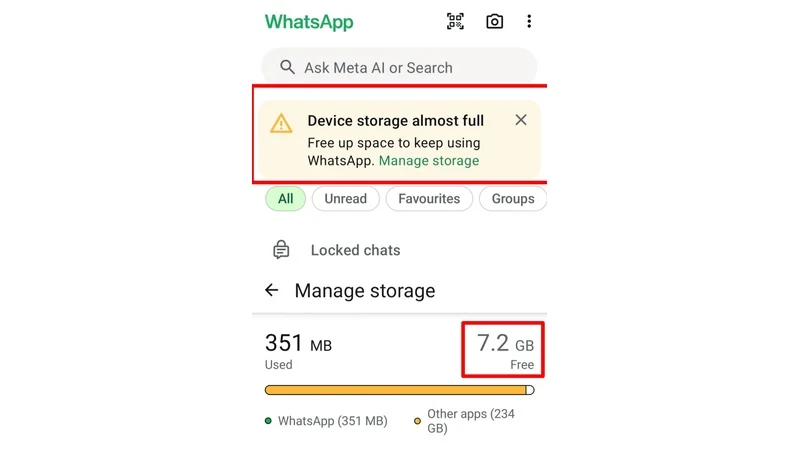
Step 1: Use WhatsApp’s Built-In Storage Manager
This is the single most effective tool you have, and most people never open it.
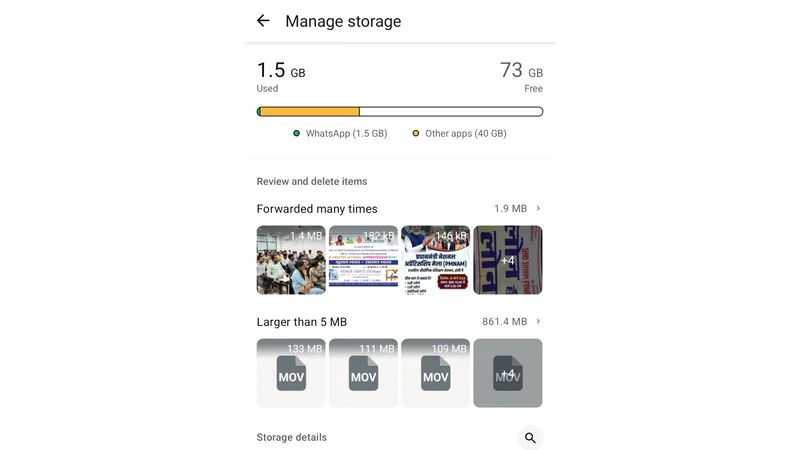
Open WhatsApp on your phone, head to Settings, navigate to Storage and Data, then tap Manage Storage. WhatsApp will show the total storage used, available storage, and a breakdown of files including large files and the chats consuming the most space.
From here, you have options: selecting “Larger than 5 MB” lets you delete particularly space-consuming files, while “Frequently forwarded” filters out files that may have been sent or received across multiple chats.
You can tap a contact or group to open its media breakdown, then tap the trash bin icon and choose “Delete from device.” This removes the media while keeping the text chat history completely intact.
That’s the key point. Deleting media does not delete your conversations. Your chat thread stays exactly as it was.
For Android Users
Launch WhatsApp and click on the three-dot symbol in the upper right corner, select Settings, then find “Storage and data” in the seventh position. Click on it, then select “Manage storage” from the top.
For iPhone Users
Open WhatsApp on your iPhone, tap Settings from the bottom left, and select Storage and Data, then tap Manage Storage. You’ll see all your WhatsApp conversations with the file size displayed next to each one.
Step 2: Delete Large Files and Forwarded Media First
Once you’re inside the storage manager, prioritise your cleanup.
The fastest way to clear WhatsApp storage is by deleting large files and forwarded media. You can click on each category to review and delete files selectively.
Go to the “Larger than 5 MB” section first. This is where the real damage usually hides long videos, high-resolution photos shared in group chats, and documents nobody asked for but WhatsApp downloaded anyway.
Instead of a blanket deletion, selectively remove large video files, redundant images, or irrelevant documents from specific chats. Long-press the media file and select the delete icon. This targeted approach preserves valuable content while freeing up space.
Think of it like cleaning your wardrobe you don’t throw everything out, you just get rid of what you haven’t touched in months.
Step 3: Clear WhatsApp Cache (Android Only)
Here’s something most people don’t know: clearing the cache is completely safe and takes about 10 seconds.
The WhatsApp cache describes the temporary files that the app keeps on your device to improve performance. Clearing the cache will not delete your WhatsApp Storage messages or chats it only removes temporary files, so your conversations and media remain intact.
On Android, navigate to Settings > Apps > WhatsApp > Storage > Clear Cache. This removes temporary files without affecting chat history or media.
iPhone users, unfortunately, Apple does not give you direct access to clear individual app caches. Your option on iOS is to offload the app through Settings > General > iPhone Storage > WhatsApp > Offload App. This frees up space without deleting your data.
When should you clear the cache? You can do it periodically especially if your phone’s storage is running low, if WhatsApp starts lagging or freezing, after major app updates, or when media files are not loading properly.
Step 4: Turn Off Auto-Download (Stops the Problem at the Source)
Clearing storage is great. Not filling it back up in 48 hours is better.
Go to Settings, click on Storage and Data, and under Media auto-download, disable auto-download for photos, audio, video, and documents. This will prevent WhatsApp from filling up your storage automatically.
Under “When using mobile data” and “When connected on Wi-Fi,” uncheck Videos and optionally Images and Audio if you prefer manual downloads.
This one change alone can save you gigabytes per month if you’re in active group chats. You’ll still receive all messages media just won’t silently download in the background anymore.
Step 5: Manage Your Backups
This is the overlooked one. Your WhatsApp backup, especially if it includes videos, can be massive.
Go to Settings, click on Chats and tap Chat backup, then disable the toggle next to “Include videos” to help reduce local backup file sizes.
For potentially useful media files, consider archiving them to an external location — manually uploading to Google Drive, Dropbox, or OneDrive. Once backed up safely, you can delete the originals from WhatsApp without losing them.
To back up your chats before any cleanup: on Android, go to Settings > Chats > Chat Backup > Backup to Google Drive. On iPhone, go to Settings > Chats > Chat Backup > Back Up Now (to iCloud).
This ensures that even if something goes wrong during cleanup, your conversations are safe.
Step 6: Use Disappearing Messages for Future Chats
If certain chats don’t need permanent storage casual group chats, temporary work threads the disappearing messages feature is worth enabling.
With this option, messages are automatically deleted after a set period of time. Open the chat, tap the contact or group name to open settings, select “Disappearing messages,” and choose the duration: 24 hours, 7 days, or 90 days.
You can also go to Settings > Privacy > Default message timer to apply this setting to all new chats automatically.
This is not ideal for every conversation, but for group chats full of daily memes and random forwards, it works brilliantly.
Step 7: Exit Inactive Groups
A real solution is ensuring that WhatsApp doesn’t become a storage hog over time. Create a routine of analysing all the groups you are a member of and exiting inactive groups. You should also avoid downloading HD media unless needed and delete unnecessary forwards.
Group chats are the biggest media dumping grounds on WhatsApp. One active group with 50 members can easily generate hundreds of megabytes per week in forwarded content alone.
Exit the groups you haven’t actively participated in for months. Your storage and your sanity will thank you.
Final Words About How to Clear WhatsApp Storage Without Deleting Anything
WhatsApp storage problems are not a sign of a broken phone — they’re a sign of an app doing exactly what it was designed to do. It stores everything. The good news is that you now have full control over what stays and what goes.
Taking a regular look at Storage Manager and disabling auto-downloads alone will reduce the clutter, but becoming proactive will make WhatsApp and your phone fast and responsive.
Go through these steps once, build the habit, and you’ll likely never face the “storage full” notification from WhatsApp again.
Frequently Asked Questions
Q1. Does clearing WhatsApp cache delete messages?
Ans. No. Clearing the cache only removes temporary files. Your conversations and media remain completely intact.
Q2. Can I recover deleted WhatsApp media?
Ans. Only if you had a backup made before deletion. Once media is deleted from the device without a backup, it cannot be recovered through WhatsApp itself.
Q3. How often should I clear WhatsApp storage?
Ans. There’s no fixed rule, but clearing periodically works well especially if your phone’s storage is running low or WhatsApp starts to slow down. Once a month is a reasonable habit for heavy users.
Q4. Will turning off auto-download affect my chats?
Ans. Not at all. You’ll receive all messages normally. Media simply won’t download until you tap on it manually.
Must Read: Google ads kaise band kare: Chrome aur Mobile Screen
How to Stop AI Features from Draining Your Smartphone Battery: Phone Overheating Solutions 2026
Green Line And Pink Line on Your Phone Screen: Samsung, OnePlus, aur Nothing Users
How to Clear Storage on Android 2026: Free Space & Boost Speed